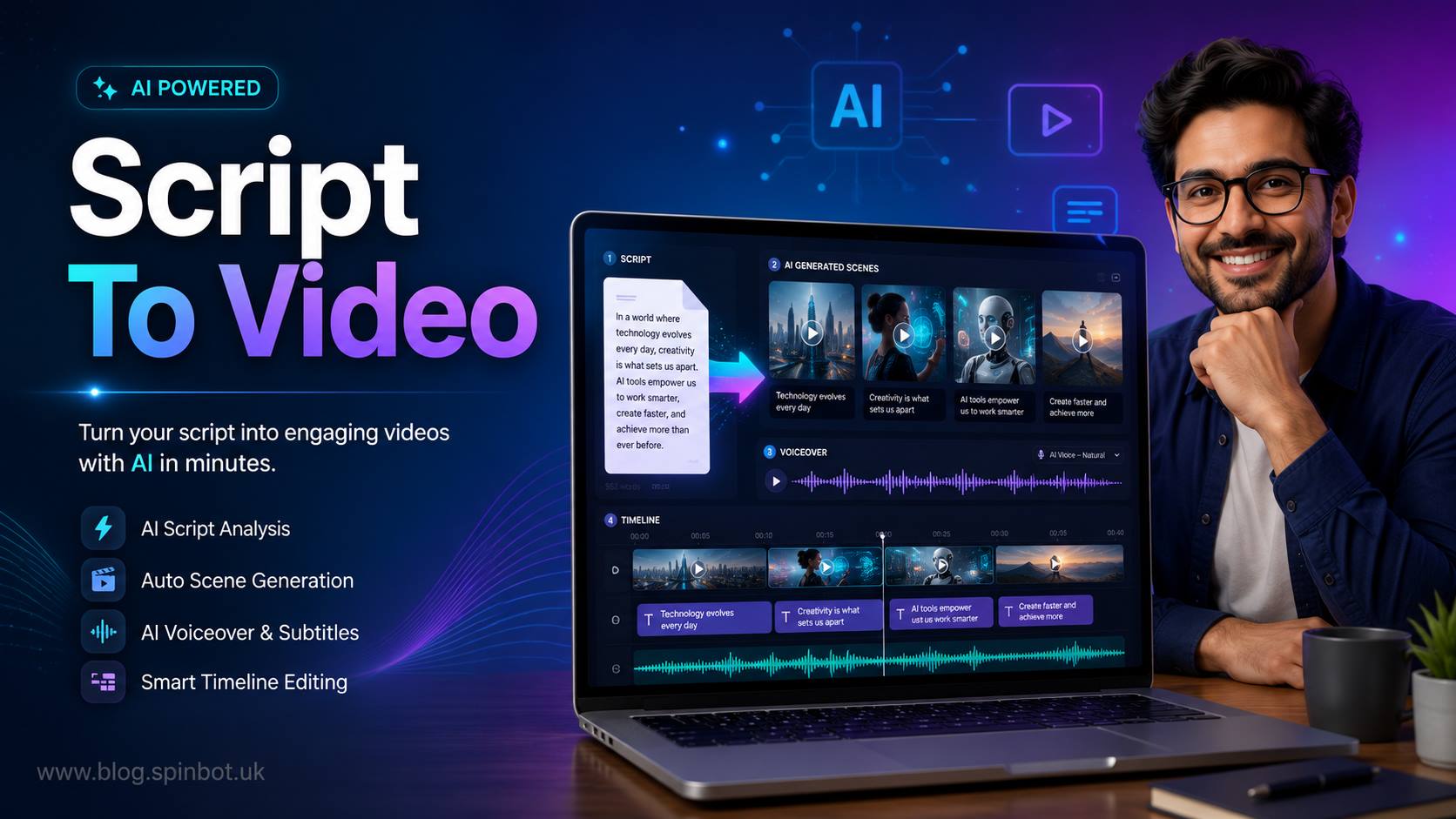
Text to Video AI Tools That Convert Scripts Into Videos take written text and turn it into editable video scenes with visuals, captions, voiceovers, avatars, music, and export options. The best tools depend on your goal: Pictory and Lumen5 suit blog-style videos, Synthesia and HeyGen suit avatar videos, while VEED, Kapwing, InVideo, and Canva work well for quick online editing.
What do text to video AI tools actually do?
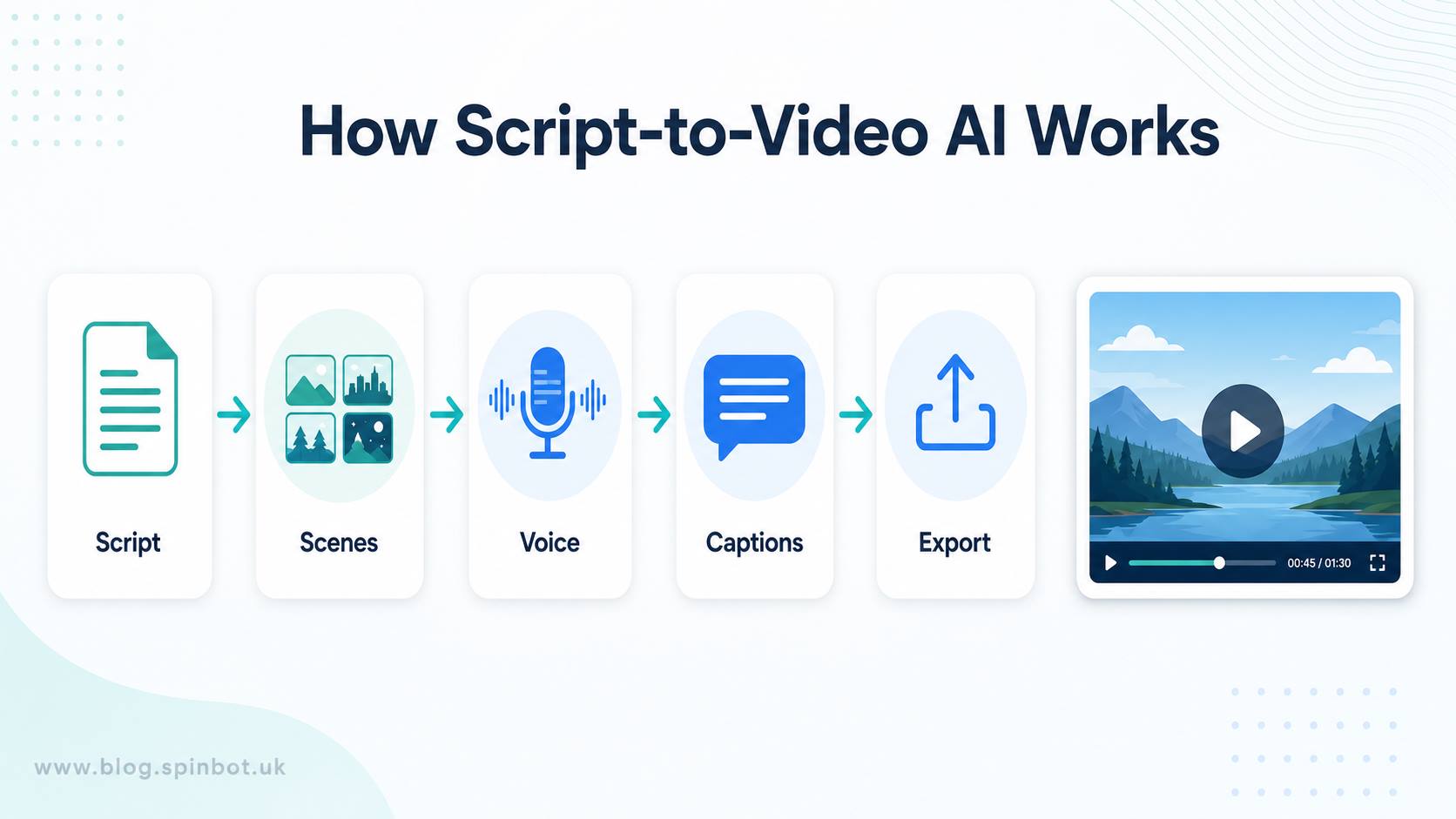
Text-to-video AI tools turn a written script into a video draft by splitting the text into scenes, matching visuals, creating captions, adding narration, and letting you edit the result before export. Some tools focus on avatar presenters. Others focus on social videos, stock clips, animated scenes, or blog-to-video workflows.
The useful part is not that AI magically makes a perfect video. It usually doesn’t. The useful part is that it removes the blank timeline problem. Instead of opening a video editor and building everything from zero, you paste a script and get a first version that you can improve. Pictory, for example, describes its script-to-video feature as a way to paste text and generate videos with visuals, background music, and AI voiceovers. VEED says its AI video platform can generate videos from text, scripts, or images with visuals, AI voiceovers, avatars, and subtitles.
That matters for bloggers, teachers, marketers, YouTubers, affiliate site owners, and small businesses. A 1,200-word post can become a short explainer. A product script can become a promo video. A training note can become an avatar-led lesson. For creators who use writing tools like Spinbot to clean up drafts, this workflow can be even faster: refine the script first, then turn it into a video.
Which tools are best for turning scripts into videos?
The best script-to-video AI tool depends on the type of video you want, not just the tool with the longest feature list. If you want a talking presenter, Synthesia or HeyGen makes more sense. If you want blog posts and educational scripts turned into scene-based videos, Pictory or Lumen5 fits better. If you want quick social content with editing control, VEED, Kapwing, Canva, and InVideo are easier starting points.
| Tool | Best for | Works online | Useful free option | Main strength |
|---|---|---|---|---|
| Pictory | Blog posts and scripts | Yes | Free start/trial style access varies | Script scenes, captions, voiceovers |
| Synthesia | Avatar videos | Yes | Free plan available | AI avatars and many languages |
| HeyGen | Presenter and business videos | Yes | Free generator access varies | Avatars, voices, translation |
| VEED | Editing plus AI generation | Yes | Free start available | Text-to-video, captions, branding |
| Kapwing | Social and short videos | Yes | Free to start | B-roll, subtitles, voiceover |
| InVideo AI | Marketing and creator videos | Yes | Free start varies | Prompt-led video creation |
| Canva | Design-led AI video clips | Yes | Depends on plan/features | Easy design and video editing |
| Lumen5 | Blog-to-video workflows | Yes | Plan access varies | Turning written content into scenes |
This is why there is no single answer to “best script to video AI”. For YouTube Shorts, Kapwing or VEED may feel faster. For corporate training, Synthesia is stronger because it uses AI avatars and voiceovers in many languages. Synthesia says it supports AI avatars and voiceovers in 160+ languages, with a free plan that includes monthly video minutes and stock avatars. HeyGen says its text-to-video workflow can use photorealistic avatars, voices, captions, visuals, and 175+ languages.
For blog owners, Lumen5 and Pictory feel more natural because they understand article-style content. Lumen5 says users can upload text, a link, or a script, then its system analyses the content, extracts key messages, creates scenes, and produces an editable draft. That is closer to what many publishers actually need.
Which free tools are worth trying first?
The best free options are usually tools that let you test the workflow before paying, but free does not always mean watermark-free, high-resolution, or suitable for commercial publishing. Kapwing, Synthesia, VEED, Canva, and some InVideo-style workflows are worth testing first because they let beginners understand how script-to-video feels before committing to a paid plan.
Kapwing calls its AI script-to-video tool free to start and says users can paste a script to generate editable videos with AI-matched B-roll, voiceover, subtitles, talking-head characters, and music. Synthesia also says its script-to-video maker can be used free in the browser, with upgrades needed for full HD downloads and premium features. VEED presents itself as an online AI video platform where users can generate, refine, and export videos in one place.
Here’s the honest part. Search terms like “text to video ai tools that convert scripts into videos free” and “script to video ai free online” often bring mixed results because free plans change. Some tools offer free credits. Some let you generate but add a watermark. Some allow low-resolution export. Some let you edit for free but reserve premium stock, avatars, or voiceovers for paid users.
For a beginner, that’s not a problem. Use the free version to test speed, quality, scene matching, voice quality, caption style, and export options. Don’t judge a tool by the homepage alone. Paste the same 150-word script into three tools and compare the result. You’ll quickly see which one understands your content better.
Can you make videos online without downloading software?
Yes, most modern script-to-video AI tools work online in a browser, so you don’t need to download heavy editing software. This is one reason these tools have become popular with small creators. You can paste a script, choose a format, edit scenes, add captions, and export from a web dashboard.
That answers the search intent behind “text to video ai tools that convert scripts into videos online”. VEED, Kapwing, Synthesia, HeyGen, Canva, Lumen5, Pictory, and InVideo all position their tools around browser-based video creation or online AI generation. Canva says its AI video generator can create video from text and includes synchronised audio, dialogue, and sound effects. InVideo says its text-to-video AI can generate videos from a text prompt with characters, effects, animations, voiceovers, and more.
Online tools are easier for teams too. You can create a draft on one laptop, edit it later on another device, and share the project with someone else. That’s much simpler than sending large project files around. The downside is that you need a stable internet connection, and some exports may take time during busy periods.
For most beginners, online is better than download. Download-based tools still matter for advanced editing, privacy-heavy workflows, or offline work, but script-to-video creation is now mainly a browser-first category.
Is there a download or APK version for mobile users?
Some AI video tools have mobile apps or mobile-friendly web versions, but an APK should be downloaded only from trusted app stores or the official tool provider. Avoid random “mod APK” versions promising free premium exports or no watermark. They can be unsafe, outdated, or full of unwanted software.
The keyword “text to video ai tools that convert scripts into videos apk” usually comes from Android users who want to create videos directly on a phone. That’s understandable. Many short-form creators now record, edit, caption, and publish from mobile. InVideo has an official Google Play listing for its AI video app, which presents it as an AI video creation tool for creators and marketing teams. Canva also has mobile apps, and its video editor works well for quick design-led editing.
Still, the browser version is often better for longer scripts. Editing scene order, replacing visuals, checking captions, and adjusting brand assets is easier on a laptop. Use mobile for short videos, reels, captions, and quick changes. Use desktop for long video drafts, brand work, and careful exports.
The safest rule is simple: if you need an app, use the official app store. If a website offers a cracked APK with premium features unlocked, skip it. A video tool handles your scripts, uploads, voiceovers, and sometimes brand files. That’s not something to trust to unknown downloads.
Which tools work better for long videos?
For long videos, choose tools that create structured scenes from a full script and let you edit pacing carefully. Pictory, Lumen5, Synthesia, and HeyGen are stronger for longer scripts because they organise content into scenes, presenters, voiceovers, and editable sections. Short clip generators are better for hooks, ads, and social snippets.
The phrase “script to long video ai free” sounds attractive, but long AI video creation usually reaches free-plan limits quickly. Longer videos use more credits, more rendering time, more voiceover minutes, and more media assets. That’s why many free plans are best for testing rather than publishing full-length content every day.
For educational videos, avatar tools can work well because the presenter keeps the video consistent. Synthesia says users can create videos from text, files, scripts, or URLs, and also localise content using its translator and templates. HeyGen says its script-to-video tool supports lifelike avatars, voice cloning, AI voiceovers, and lip-synced captions across 175+ languages.
For blog-style long videos, scene-based tools are often better. A 1,500-word article can be split into short sections with stock visuals, captions, and narration. The final video may not feel cinematic, but it can work well for explainers, tutorials, product overviews, and social repurposing.
Long videos need human editing. Remove repeated lines. Shorten weak scenes. Add examples. Check pronunciation. Make sure captions match the voice. AI can build the draft, but the final quality still depends on your judgement.
Can you export without a watermark?
You can export without a watermark on many script-to-video AI tools, but it usually requires a paid plan or premium export option. Free tools often add a watermark, limit resolution, restrict downloads, or reserve watermark-free exports for subscribers. Always check export rules before you build a full project.
This is the main issue behind “script to video ai free without watermark”. People want a free tool that creates professional videos and lets them export cleanly. A few platforms may offer limited watermark-free trials or temporary credits, but these terms change often. The safer advice is to test free plans for quality, then pay only for the tool that gives you the best results for your use case.
Watermark-free matters if you publish on YouTube, client websites, course platforms, business pages, or paid ads. A watermark can make a video look unfinished. It can also reduce trust if the video is supposed to represent a brand. For personal testing or draft approval, a watermark is fine. For final publishing, it’s better to export clean.
Also check commercial rights, stock media licensing, avatar usage rules, and voice cloning permissions. The watermark is only one part of the publishing picture. A clean export is useful only when you’re allowed to use the visuals, audio, and generated assets in the way you plan.
How should beginners choose the right tool?
Beginners should choose based on the video format they want to publish most often. Don’t start by comparing every feature. Start with your output: YouTube explainer, TikTok-style short, training video, product demo, blog summary, course lesson, or social ad. Then pick the tool that matches that format.
For blog posts and article summaries, try Pictory or Lumen5. For talking-head business videos, try Synthesia or HeyGen. For short social content and easy editing, try Kapwing or VEED. For design-heavy videos and simple brand layouts, try Canva. For prompt-led marketing videos, try InVideo.
A simple test works better than reading twenty reviews. Write one 120-word script about your topic. Paste it into three tools. Export or preview the draft. Then judge five things: Does it understand the script? Are the visuals relevant? Is the voice acceptable? Are captions clean? Can you edit quickly?
The best tool is the one that helps you publish more often without making your content look cheap. Fancy AI effects don’t matter if the pacing is poor. Avatars don’t help if the voice sounds wrong. Stock clips don’t help if they don’t match the message. Good video still needs a clear script, tight editing, and a useful point.
What mistakes make AI videos look poor?
AI videos look poor when the script is vague, the scenes are too long, the captions are messy, or the visuals don’t match the message. Most bad AI videos don’t fail because of the tool. They fail because the input was weak and nobody edited the output.
Start with a clean script. Use short sentences. Say exactly what the viewer should understand. Avoid long paragraphs that sound like an essay. Script-to-video tools perform better when each idea can become one scene. If your script jumps between points, the AI will also jump between random visuals.
Don’t accept the first draft blindly. Replace irrelevant stock clips. Cut repeated lines. Change robotic captions. Add your brand colours if needed. Check spelling, especially names, prices, dates, and tool names. If the video uses voiceover, listen to the whole export before publishing. AI voices can mispronounce brand names and technical words.
For avatar videos, keep the delivery natural. Don’t make one avatar read a 12-minute script without visual changes. Add slides, screen recordings, examples, or scene breaks. For social videos, the first three seconds matter. Put the strongest line first, not a slow greeting.
AI is helpful, but viewers still judge the final video like any other video. They want clarity, movement, and a reason to keep watching.
Which tool is the safest first choice?
The safest first choice for most creators is an online editor that combines script-to-video generation with manual editing. VEED and Kapwing are strong beginner options because they make it easy to adjust captions, visuals, layout, and timing after the AI creates the draft. For more formal business videos, Synthesia and HeyGen are better first choices.
For bloggers, Pictory and Lumen5 are more practical because they understand article-style input. If you already publish written content, these tools can help turn posts into videos for YouTube, Facebook, LinkedIn, or short-form clips. If you create designs in Canva already, Canva’s AI video features may feel the most familiar because the editing environment is simple and visual.
Bottom line: don’t chase the tool with the biggest promise. Choose the one that fits your publishing habit. A blogger needs a different workflow from a course creator. A TikTok creator needs a different workflow from a company making HR training videos. The “best script to video AI” is the one that gets your script into a usable video with the least fixing.
Text-to-video AI is now good enough to save hours, but not good enough to replace taste. Use it as a fast production assistant. Give it a clear script, edit the weak parts, check the export rules, and publish only when the video feels like something you’d actually watch.
Relevant categories: Online Tools, Apps, Social Media

Rachel combines her technical expertise with a flair for clear, accessible writing. A graduate of the University of Edinburgh, she specializes in creating detailed tech-focused content, Govt Jobs, Payslips that educates our readers about the latest in web development and SEO tools at Spinbot blog.