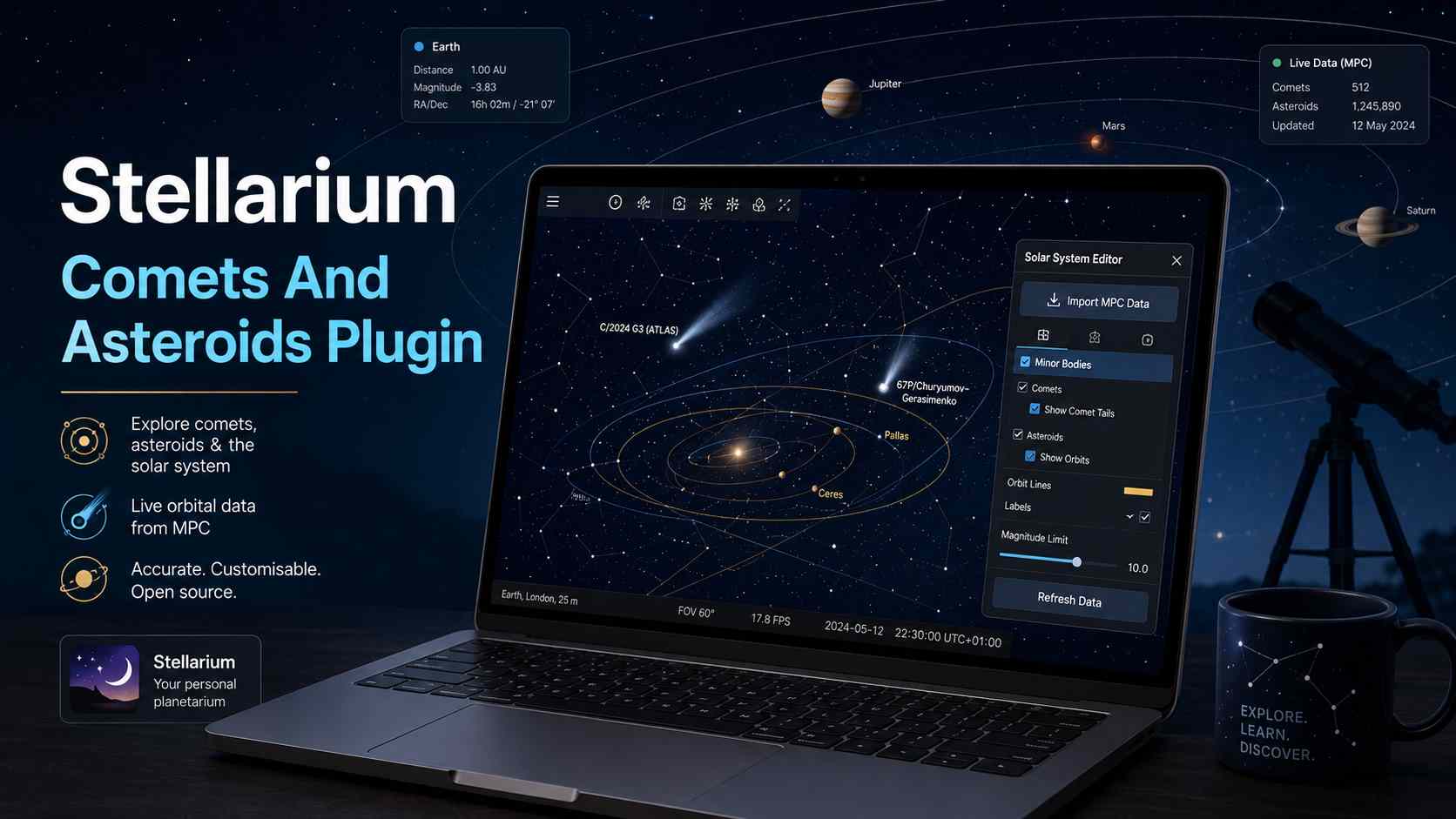
The useful part is simple: not every comet or asteroid you want to track will always be ready inside Stellarium by default. A newly discovered comet may be missing. An older comet may appear in the wrong place if its orbital elements are outdated. An asteroid may need fresh data before you can search for it properly. That is where the Solar System Editor plugin becomes important. It lets Stellarium read orbital element data, commonly in MPC format, and convert it into the format Stellarium uses for Solar System objects. Stellarium’s own documentation describes functions for reading comet and minor planet orbital elements in MPC one-line format and converting them into Stellarium’s system data format.
So, when someone says “Stellarium Comets And Asteroids Plugin”, they are usually not talking about a separate plugin with that exact name. They mean the built-in plugin area that handles minor Solar System objects. Once you understand that, the whole process becomes much less confusing. You are not installing a random third-party add-on. You are using a built-in Stellarium tool that already exists for this kind of job.
Why Are Some Comets And Asteroids Missing From Stellarium?
Some comets and asteroids are missing because Stellarium may not include fresh orbital data for every object by default. This is especially common with newly discovered comets, fast-changing comet paths, or asteroid data that has not been updated on your local setup. Stellarium’s current-version problem notes state that newly discovered comets need to be added with the Solar System Editor plugin, and existing comet elements may need frequent updates because Stellarium does not fully simulate changes caused by planetary gravity or non-gravitational effects such as outgassing.
That sounds technical, but the idea is not hard. A comet is not like a fixed star. It moves. Its path can shift, especially when it passes near the Sun or planets. Gas jets can also slightly change how a comet moves. If your software is using old orbital numbers, the comet can show in the wrong part of the sky or not appear in search results at all. That does not always mean Stellarium is broken. It often means the object data is old, missing, or not matched to the date you are checking.
Asteroids are usually more stable than comets, but they still need correct orbital data. If you are tracking a specific numbered asteroid, a near-Earth asteroid, or a recently catalogued minor planet, you may need to import its elements manually. This matters more for serious sky planning than casual sky viewing. If you just want to look at Mars or Saturn, you probably will not touch the plugin. But if you want to follow a faint comet, check a minor body, or prepare for an observation night, the plugin becomes one of Stellarium’s most useful features.
How Can You Enable The Solar System Editor Plugin?
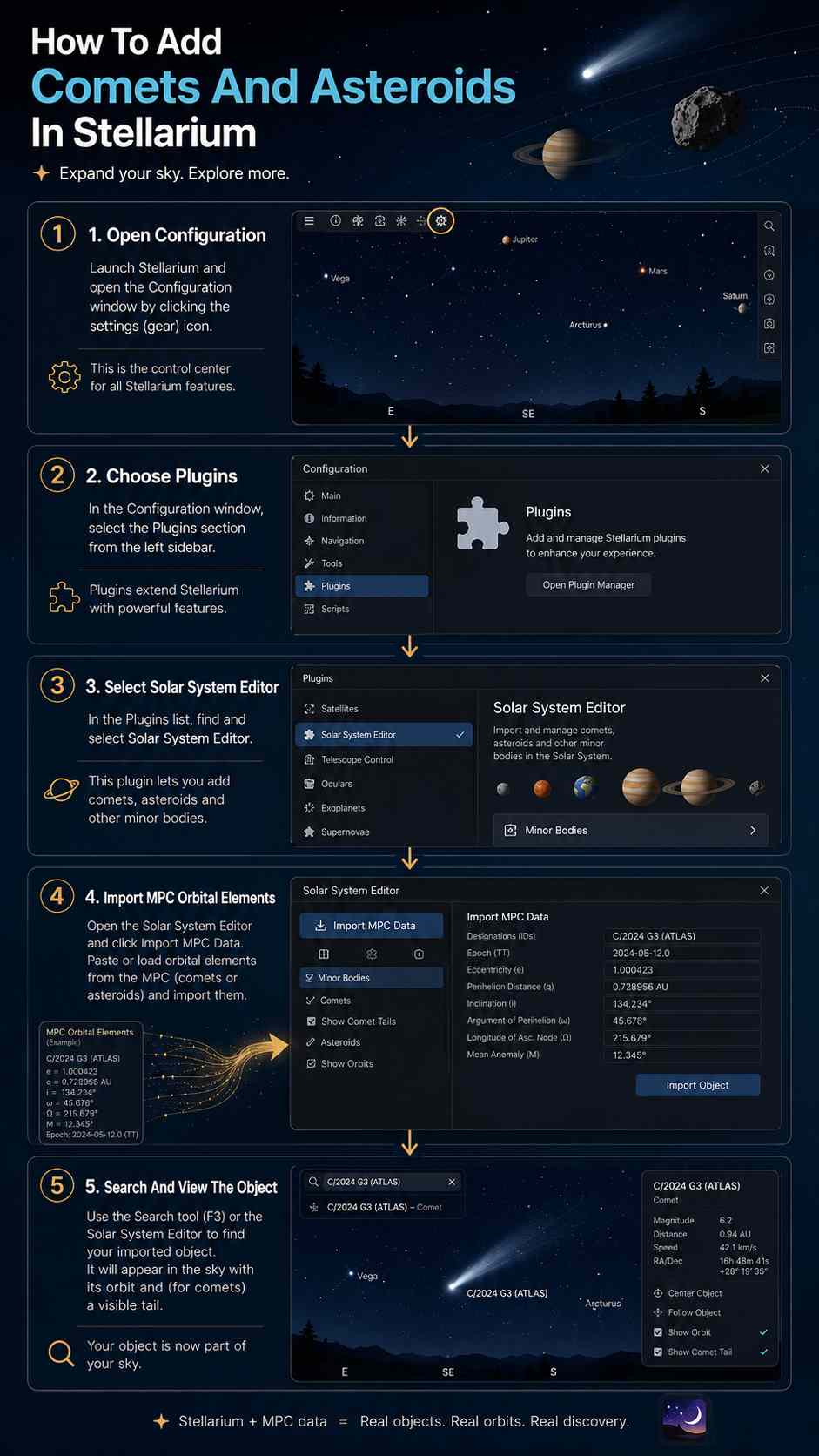
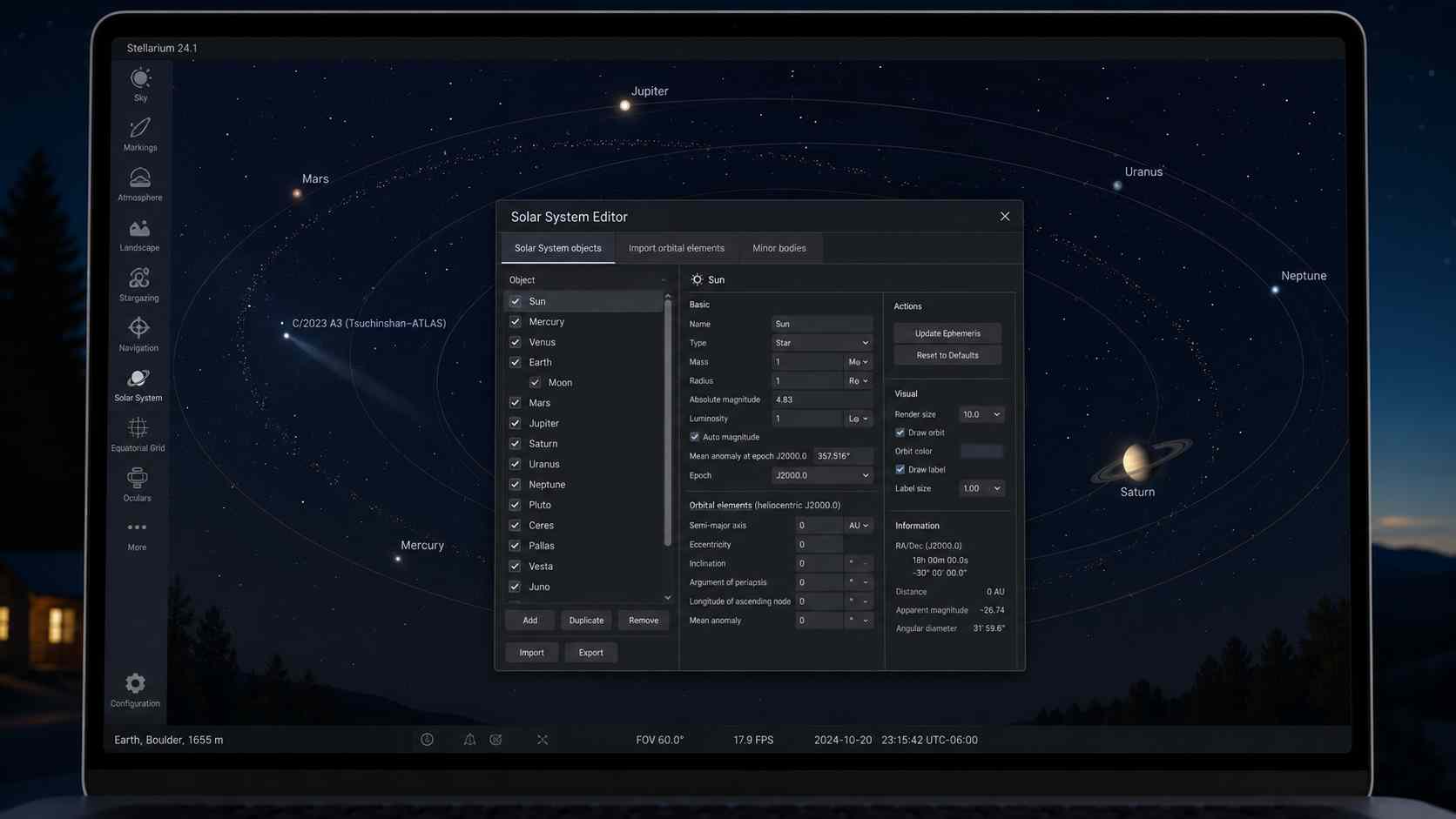
You can enable the Solar System Editor plugin from Stellarium’s configuration window. Open Stellarium, press F2, choose the Plugins tab, select Solar System Editor, and make sure it loads at startup if you want regular access. In many desktop versions, you may need to restart Stellarium after enabling or changing plugin settings. Several Stellarium tutorials describe this same flow: open Configuration, go to Plug-ins, choose Solar System Editor, tick Load at Startup, then use Configure to open the Solar System objects window.
Here is the clean version of the process.
- Open Stellarium on your computer
- Press F2 or open the Configuration window
- Click the Plugins tab
- Select Solar System Editor
- Tick Load at startup if available
- Click Configure
- Open the Solar System tab
- Choose Import orbital elements in MPC format
- Select comets or asteroids
- Get orbital elements and add the objects you need
The wording may shift slightly between versions, but the logic stays the same. You are opening the plugin, importing object data, then adding the selected comet or asteroid to Stellarium’s local object list. After that, you can use Stellarium search to find the object by its name or designation.
One small warning: do not rush the name search. Comets often use formal names like C/2023 A3 or 12P/Pons-Brooks. Asteroids may use numbers, provisional designations, or names. If you type only the popular name, Stellarium might not find it. Try the official designation, especially for newer objects.
How Do You Add A Comet To Stellarium?
To add a comet in Stellarium, use the Solar System Editor plugin and import orbital elements in MPC format. Choose the comet list, download or paste the available orbital data, select the comet you want, and add it to Stellarium. A training PDF from Rice University gives the same core process: open Minor Solar System Objects, select Import orbital elements in MPC format, choose Comets, download a list, select an object, and add it.
This is helpful when a comet is in the news but does not appear in your Stellarium search. You may see people talking about a comet online, but when you search inside Stellarium, nothing shows. That does not always mean the comet cannot be viewed. It may only mean Stellarium does not yet have the object’s orbital elements in your installed data file.
After adding the comet, set the correct date, time, and location. This step matters more than beginners think. A comet can be visible before dawn in one country and not visible at the same time in another. It can sit low near the horizon, disappear in twilight, or be hidden by local sky conditions. Stellarium can show the path, but it cannot make a faint comet bright enough for poor visibility. Treat the software as a planning tool, not a promise that your eyes will see the object easily.
If the comet appears but seems too faint, check magnitude settings, sky brightness, light pollution, horizon view, and the object’s altitude. A comet close to the Sun on the screen may be technically present but practically difficult to observe. That is normal. Comet hunting has always needed patience.
How Do You Add An Asteroid To Stellarium?
You can add an asteroid in almost the same way you add a comet. Open the Solar System Editor, choose the import option for MPC orbital elements, select the minor planet or asteroid data source, load the elements, then add the asteroid to your local Stellarium list. The plugin documentation refers to reading lists of minor planet orbital elements in MPC one-line format, which is the same basic data style used for many asteroid imports.
The difference is mainly in the object type and naming. Comets often have visible tails in popular images, so beginners expect them to look dramatic. Asteroids are usually points of light. In Stellarium, many asteroids will look like small moving dots rather than cinematic objects. That is not a software failure. It is close to how asteroids behave in real sky observation. Most of them do not look like rocky shapes through a backyard telescope. They look like star-like points that shift position over time.
For a beginner, the best way to confirm an asteroid is working in Stellarium is to search its name or number, centre the object, then move time forward by hours or days. If the object slowly changes position against the star background, you are seeing its path correctly. This is also a good way to learn why asteroid tracking is more about position and timing than visual drama.
If you are planning a real observation, use Stellarium together with current ephemeris data. Stellarium is excellent for visual planning, but when you need precision for a telescope session, fresh orbital data matters. Old elements can place a small object slightly off target, and for faint objects, that small difference can waste the whole night.
What Is MPC Data And Why Does Stellarium Use It?
MPC data means orbital element data from the Minor Planet Center format used for comets, asteroids, and other minor Solar System objects. Stellarium uses this type of data because it gives the software the numbers it needs to calculate where an object should appear in the sky. Without those numbers, Stellarium cannot properly draw the object’s position for your selected time and location.
Think of orbital elements like a travel route for a space object. Stellarium does not simply guess where a comet or asteroid is. It needs values that describe the object’s orbit. These values help the software calculate its position. That is why the plugin talks about importing orbital elements rather than importing a pretty picture or a normal database entry.
This also explains why a comet can go missing after a while. The data you imported may have been useful for one observing period but less useful later. Stellarium’s common problems page notes that orbital elements should have an epoch close to the date of observation, not necessarily just the newest-looking file. In plain English, the numbers should match the observing period you care about.
For casual users, this detail may feel like too much. But it is the difference between “I added the comet” and “I added the comet properly for the night I want to observe it.” Once you understand that, troubleshooting becomes easier. You stop blaming the search box and start checking the data, date, time, and object designation.
Why Can’t Stellarium Find The Object After Importing It?
Stellarium may fail to find an imported object because the name is different, the data was not added correctly, the plugin did not refresh, or the object designation does not match what you typed. Comets and asteroids often have formal names that look strange to beginners. A comet may be known online by a short nickname, but Stellarium may store it under a full designation.
Start with the exact object name from the source where you got the orbital elements. If that fails, try the official designation. For comets, include the prefix if it has one, such as C/, P/, or another formal style. For asteroids, try the number if it has one, then the name, then the provisional designation. Small spelling differences matter.
If the object still does not show, restart Stellarium. It sounds basic, but it often helps after plugin changes. Then check whether the object was actually added to the Solar System objects list. Some users download orbital elements but forget to select the object and click Add objects. Downloading data and adding data are not always the same action.
Also check date and time. If you imported the object successfully but are viewing a date far away from the intended observation period, the object may be somewhere unexpected or too faint. Change the date to the observing night and set your actual location. A comet visible from the northern hemisphere before sunrise may not sit in the same place for a southern hemisphere observer. Stellarium is powerful, but it only works well when your inputs are correct.
Is Stellarium Reliable For Tracking Comets And Asteroids?
Stellarium is reliable for visual planning, learning the sky, and checking where a comet or asteroid should appear, as long as its orbital data is current enough for your use. It is not a magic telescope controller, and it should not be treated as the only source for high-precision observation. The best use is practical: import updated data, check the object path, compare it with nearby stars, and plan when and where to look.
For beginners, that is more than enough. You can use Stellarium to see whether a comet is above the horizon, what constellation it is crossing, whether the Moon will interfere, and what time of night gives the best chance. You can also speed up time and watch the object move day by day. That makes the sky feel less abstract. You are not just reading coordinates. You are seeing the object’s place in a familiar star field.
For advanced observing, especially faint asteroid work, you may want to double-check with specialist ephemeris tools. But that does not reduce Stellarium’s value. It simply means Stellarium is strongest as a clear visual guide. It helps you understand the sky before you step outside.
The real habit to build is updating data before important observation nights. If you added a comet weeks ago and now want to observe it, refresh the orbital elements. If an asteroid is not where expected, check the source data and the epoch. Most Stellarium “errors” around comets and asteroids are really data freshness problems.
Why Are SEO Tools Showing LSI Keywords Instead Of Astronomy Keywords?
SEO tools sometimes show unrelated LSI keywords because they are reading broad search patterns, not the exact meaning of your article topic. In this case, terms like what is a LSI keyword, lsi keyword full form, what is LSI in digital marketing, lsi keywords in seo, answer the public, lsi keywords generator, and google keyword planner are about keyword research, not Stellarium astronomy software.
That does not mean you should force them everywhere. It means you should use them carefully, probably in one short section about content planning or keyword mismatch. If an article is about the Stellarium Comets And Asteroids Plugin, Google expects entities like Stellarium, Solar System Editor, orbital elements, MPC format, comets, asteroids, minor bodies, sky map, telescope, and planetarium software. If half the article suddenly talks about digital marketing, the topic becomes muddy.
The common question “What are the 4 types of keywords?” usually points to SEO categories such as informational, navigational, commercial, and transactional keywords. That belongs in an SEO article. The question “How to find LSI keywords?” belongs with tools like AnswerThePublic, Google Keyword Planner, and related search analysis. Those terms can be useful for planning content, but they are not natural support terms for a Stellarium plugin guide.
For a clean article, use those LSI terms only where they make sense. One paragraph is enough. The main body should stay with the reader’s real problem: how to add comets and asteroids in Stellarium. That is what satisfies search intent.
Which Keywords Fit This Stellarium Topic Best?
The best keywords for this article are astronomy software keywords, not general SEO keywords. The main keyword can stay as Stellarium Comets And Asteroids Plugin, but the supporting terms should describe what the reader actually wants to do: enable the Solar System Editor, add comets, add asteroids, import MPC data, and fix missing objects.
| Keyword Type | Better Keyword Example |
|---|---|
| Main keyword | Stellarium Comets And Asteroids Plugin |
| Plugin keyword | Stellarium Solar System Editor plugin |
| Task keyword | add comets to Stellarium |
| Task keyword | add asteroids to Stellarium |
| Data keyword | import orbital elements in MPC format |
| Object keyword | Stellarium minor Solar System objects |
| Troubleshooting keyword | Stellarium comet not showing |
| Search keyword | find asteroid in Stellarium |
This keyword set keeps the article tight. It gives search engines a clear topic map and gives readers a guide that feels useful instead of padded. The unrelated SEO terms can still appear once, but they should not lead the article.
For writers preparing software guides, <a href=”https://spinbot.uk/”>Spinbot</a> can help turn rough notes into cleaner reading. But the research still needs to be accurate. A tool can polish the language; it cannot replace checking how Stellarium actually works.
Is The Plugin Worth Using For Beginners?
The Solar System Editor plugin is worth using if you want Stellarium to show more than the default planets, stars, and common sky objects. It gives beginners a practical way to follow real comet events, search for asteroids, and understand how moving objects behave in the night sky. It also teaches a useful lesson: astronomy software depends on data, and fresh data matters.
You do not need to be an expert to use it. The first attempt may feel awkward because terms like MPC format, orbital elements, and minor bodies sound technical. But once you do it once, the workflow becomes familiar. Open the plugin, import the data, add the object, search the name, set your date and location, then check the sky view. That is the whole rhythm.
The biggest mistake is expecting Stellarium to already know every new object automatically. It does not always work that way. When a comet becomes popular online, many beginners open Stellarium, search the name, see nothing, and assume the software is outdated or useless. Usually, they just need the Solar System Editor plugin and the right orbital data.
Use Stellarium as a sky-planning companion. Keep the plugin enabled, update objects before important observing nights, and learn the proper object names. Once that habit clicks, tracking comets and asteroids becomes less mysterious and much more enjoyable.
FAQs
What is the Stellarium Comets And Asteroids Plugin?
The Stellarium Comets And Asteroids Plugin usually refers to the Solar System Editor plugin inside Stellarium. It helps users add, update, or remove minor Solar System objects, including comets and asteroids, by importing orbital element data.
How do I enable the comets and asteroids plugin in Stellarium?
Open Stellarium, go to the Configuration window, select the Plugins tab, choose Solar System Editor, and enable it. If the option says “Load at startup”, tick it, then restart Stellarium if needed.
How do I add comets to Stellarium?
Open the Solar System Editor plugin, choose the option to import orbital elements in MPC format, select comet data, download or load the list, choose the comet you want, and add it to Stellarium.
How do I add asteroids to Stellarium?
You can add asteroids through the Solar System Editor plugin in almost the same way as comets. Select the minor planet or asteroid data source, import the orbital elements, choose the asteroid, and add it to your local Stellarium object list.
Why is my comet not showing in Stellarium?
A comet may not show because its orbital data is missing, outdated, or stored under a different official name. Check the full comet designation, update the orbital elements, set the correct date and location, and restart Stellarium if needed.
What is MPC data in Stellarium?
MPC data means orbital element data in a format used by the Minor Planet Center. Stellarium uses this data to calculate where comets, asteroids, and other minor bodies should appear in the sky for a selected date, time, and location.
Is the Solar System Editor plugin already included in Stellarium?
Yes, in most desktop versions of Stellarium, the Solar System Editor plugin is included as a built-in plugin. You usually only need to enable it from the Plugins section rather than install a separate third-party tool.
Can Stellarium track newly discovered comets?
Yes, Stellarium can show newly discovered comets if you import fresh orbital elements for them. If a new comet does not appear in search, it usually means the object has not been added to your local Stellarium database yet.
Why does Stellarium show a comet in the wrong place?
This can happen when the orbital elements are old, the selected date is wrong, or your location settings are incorrect. Comets can shift due to gravitational and non-gravitational effects, so updated data is important for better accuracy.
Is Stellarium accurate for asteroid tracking?
Stellarium is useful for visual planning and learning where asteroids appear in the sky. For serious observation or telescope work, use fresh orbital data and cross-check with current ephemeris sources, especially for faint or fast-moving objects.
What is a LSI keyword?
A LSI keyword is commonly used in SEO to describe a related term or phrase connected to the main topic. Strictly speaking, modern search engines do not rely on old LSI technology in the simple way many SEO tools claim, but related terms can still help content context.
How can I find better keywords for a Stellarium article?
Use tools like Google Keyword Planner, AnswerThePublic, and search suggestions, but choose terms that match the actual topic. For this article, better keywords include “Stellarium Solar System Editor plugin”, “add comets to Stellarium”, and “import orbital elements in MPC format.

Rachel combines her technical expertise with a flair for clear, accessible writing. A graduate of the University of Edinburgh, she specializes in creating detailed tech-focused content, Govt Jobs, Payslips that educates our readers about the latest in web development and SEO tools at Spinbot blog.