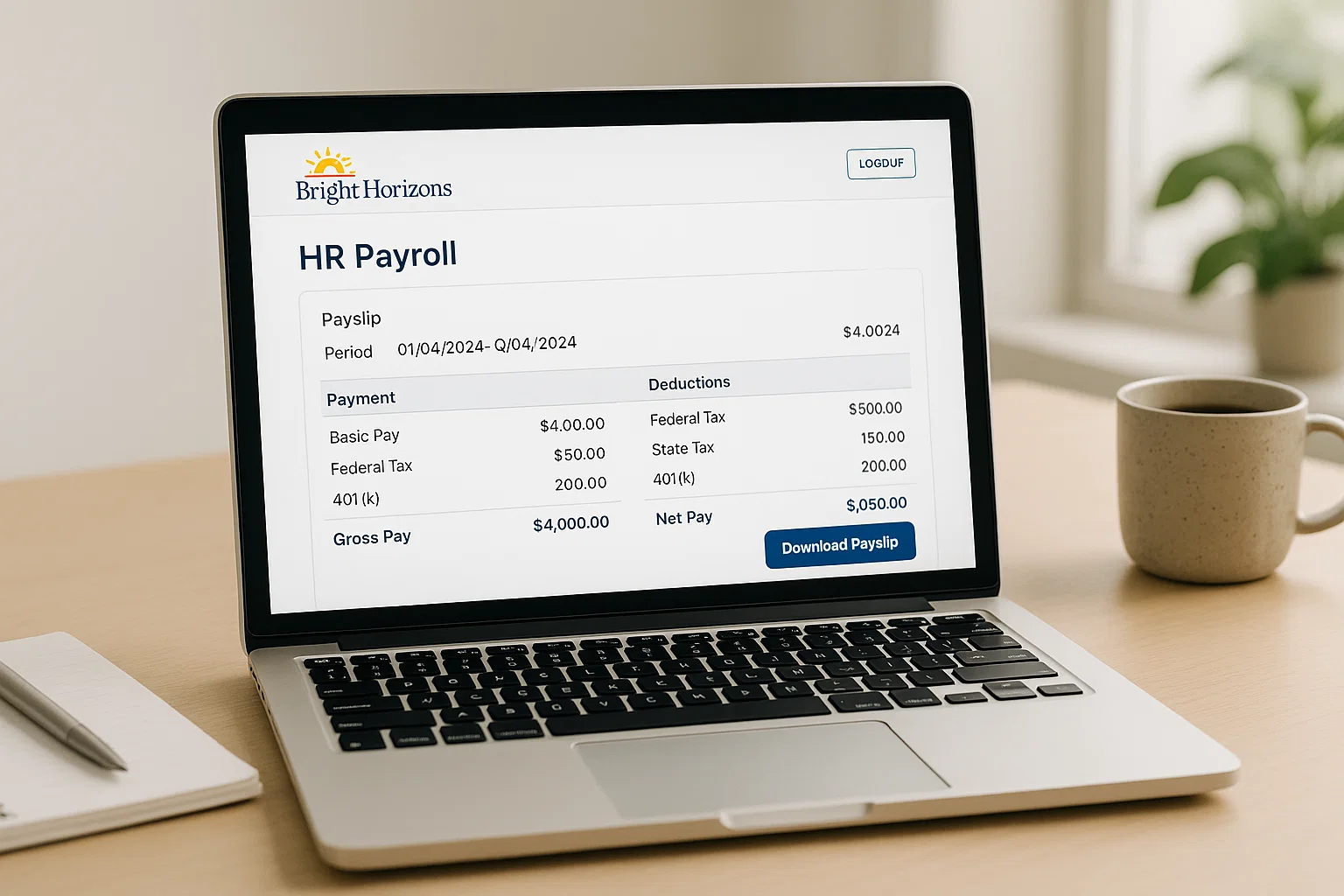
Here’s the good news. Once you understand how Bright Horizons actually organises its payroll tools, the whole thing becomes surprisingly straightforward. Think of this guide as your calm voice in the middle of the Workday whirlwind. I’ll walk you through the places where your payslip lives, what to do when it doesn’t load, why passwords misbehave, and how to save everything quickly whether you’re on a laptop, tablet, or phone.
Let’s ease into it…
Where Bright Horizons Keeps Your Payslip
Bright Horizons uses Workday as its main HR and payroll system. This is where your payslips, P60s, tax details, holiday balances, and job profile sit.
The second place you’ll hear about is BrightWeb that’s the internal staff portal. It’s more like a landing page that takes you to different parts of the HR ecosystem, including Workday.
There’s also the Learning Zone, which some new employees confuse with the payroll area. Totally understandable, but it’s only for courses, training, and essential documents not for payslips.
Here’s the clean version:
- Payslips: Workday
- Employee communications & quick links: BrightWeb
- Training & e-learning: Learning Zone
- Shift access (for some teams): Separate rota systems depending on your centre
And for the record Bright Horizons does not use BrightHR for payslips. Nor BrightPay. These appear in search results because their names look similar, and people often search “Bright” + “payslip” when they’re not sure which portal their employer uses.
How to View Your Bright Horizons Payslip
Let’s walk through it without any jargon. Your payslip lives inside Workday under a tab that’s sometimes easy to miss if the homepage layout has changed.
Here’s the path most employees follow:
- Open BrightWeb or your region’s direct Workday login page.
- Enter your username and password.
- If you’re on mobile, tap “Menu”. On desktop, it should show by default.
- Select Pay or Payslips.
- Choose the month you want and download the PDF.
That’s the simple version. The real issue comes when something doesn’t work, so let’s talk about those quirks.
Why Workday Sometimes Refuses to Load Your Payslip
If your payslip isn’t appearing, it’s usually one of these:
- You’re too early payslips often appear the day before payday, not days earlier.
- Your login session has expired without telling you.
- You’re using a saved link that points to an old Workday domain.
- The PDF is trying to open in a pop-up window your browser is blocking.
A quick fix that helps almost everyone:
- Log out completely
- Clear the browser tab
- Re-open through BrightWeb or the official Workday app
- Tap Pay again
It’s surprisingly effective.
Bright Horizons Workday Login: What You Actually Need
Most Bright Horizons employees log in using the email and password they set during onboarding. If you joined through a nursery or early years role, your manager likely gave you first-day instructions with login details.
Workday uses:
- Username: Usually your work email
- Password: The one you created during your first login
- Two-step authentication: Sometimes enabled depending on region
If your password isn’t working (and let’s be honest, Workday passwords go out of date more often than they should), hit Forgot Password, check your inbox, and reset from there.
If the link doesn’t arrive:
- Check your spam folder
- Make sure you’re using your Bright Horizons email, not your personal one
- Ask HR to confirm your account is active
The reset link expires quickly, so do it the moment it arrives.
The BrightHR Confusion: Here’s Why It Happens
You’ve probably noticed people online asking:
- “How do I see payslips on BrightHR?”
- “Is Bright Horizons the same as BrightHR?”
- “Where is my Bright Horizons payslip on the app?”
This happens because of similar naming. Let’s clear it once and for all:
BrightHR = a completely different company.
It provides absence management and HR tools for thousands of businesses, but Bright Horizons is not one of them.
If you search for “bright payslip login”, Google mixes the two systems and that’s how people end up trying to log in to the wrong portal.
Stick with:
- BrightWeb
- Workday
- The Workday mobile app
Your payslip will never appear on BrightHR.
Bright Horizons Learning Zone: Useful, But Not for Payslips
The Learning Zone is where you complete:
- Mandatory training
- Safeguarding courses
- Company updates
- Development modules
It doesn’t store payslips. But because it uses the same login email, some employees assume everything HR-related sits in the same system. It doesn’t, and that’s why so many people click around aimlessly on payday.
Think of Learning Zone as your training library not your payroll folder.
What About the Bright Horizons App?
Bright Horizons sometimes directs employees to the Workday app or centre-specific rota apps, but there is no universal “Bright Horizons payslip app”.
The safest route is:
- Install the Workday app from your app store
- Select “Bright Horizons Family Solutions” when prompted
- Log in using your existing credentials
Inside the app, the Pay section works almost the same way as on desktop.
Common mobile issues include:
- PDF not opening ⇒ switch to browser view
- Workday freezing ⇒ clear cache
- Account not recognised ⇒ check your organisation code
Don’t worry this is all very normal with Workday.
Checking Your Payslip for Universal Credit
A lot of employees look up their payslip specifically for Universal Credit reporting. You’ll usually need:
- Your net pay
- Your pay date
- Your pay period
- Any deductions (pension, student loan, tax)
Workday displays these clearly on the PDF version, so always download it rather than rely on the preview window.
If UC rejects your payslip, it’s usually because:
- It wasn’t downloaded as a PDF
- The date range is missing
- The readable format got distorted on mobile
A clean PDF from Workday solves it.
How to Reset Your Bright Horizons Workday Password
Here’s the most reliable path to success:
- Go to the official Workday login page (not a saved shortcut).
- Click Forgot Password.
- Enter your Bright Horizons email.
- Open the link immediately it expires fast.
- Set a new password following the complexity rules.
If the link never arrives:
- Your account may be locked → HR can unlock it.
- Your email on record might be outdated.
- Your centre manager might need to confirm reactivation.
Once the reset is successful, log in through BrightWeb again to refresh your access.
How to Download Your Payslip Without Any Errors
If you prefer storing your payslips for personal record-keeping or UC submissions, here’s the smoothest method:
- Use Google Chrome (best compatibility)
- Log in through BrightWeb rather than the app
- Navigate to Pay
- Select the payslip month
- Press Download PDF
- Save to your device
If the PDF opens blank:
- Disable your browser’s pop-up blocker
- Try another device
- Re-open the file from your Downloads folder
Some months show slightly different layouts depending on payroll updates, but information remains the same.
Why Some Employees Don’t See Any Payslips at All
This usually happens in three scenarios:
- You’re new and payroll hasn’t uploaded your first document yet
Your first payslip often appears just before your first payday. - Your job role moved between centres
Workday sometimes duplicates or hides your profile. - Your account is inactive
HR can restore it within minutes once notified.
If everything looks correct and payslips still aren’t appearing, HR or payroll support can fix it faster than trying to troubleshoot alone.
A Handy Tip for Faster Access
Bookmark this path:
BrightWeb → Workday → Pay
It sounds simple, but most login issues happen because people use old shortcuts or random links from Google. BrightWeb always points to the latest active Workday login page.
FAQs Built from Employee Questions
How do I find my Bright Horizons payslip?
Log into Workday, open the Pay menu, and download the monthly PDF.
Can I use BrightHR to check my Bright Horizons payslip?
No BrightHR and Bright Horizons are separate companies.
How do I reset my Workday password?
Use the “Forgot Password” link and follow the email instructions.
What is the youngest age for Bright Horizons childcare?
Bright Horizons offers nursery and early years care from baby age onwards (varies by location).
How do I view payslips on BrightPay?
BrightPay is not used at Bright Horizons; ignore search results mixing the two.
Why does Workday keep rejecting my login?
Your password may be expired or your account may be locked reset it or contact HR.
Wrapping It All Together
Once you understand where things live BrightWeb for access, Workday for payslips, Learning Zone for training the whole experience becomes a lot calmer. Most login issues simply come down to old passwords, expired sessions, or confusion between BrightHR and Bright Horizons. Bookmark the right link, reset your password when needed, and your payslip will always be just a couple of clicks away.
If you’re juggling Workday on mobile, Universal Credit uploads, or monthly record-keeping, download your payslips as PDFs every payday. It keeps everything organised and saves you from last-minute stress.
Bright Horizons built its system to be easy once you know the route. Now you do.

Rachel combines her technical expertise with a flair for clear, accessible writing. A graduate of the University of Edinburgh, she specializes in creating detailed tech-focused content, Govt Jobs, Payslips that educates our readers about the latest in web development and SEO tools at Spinbot blog.