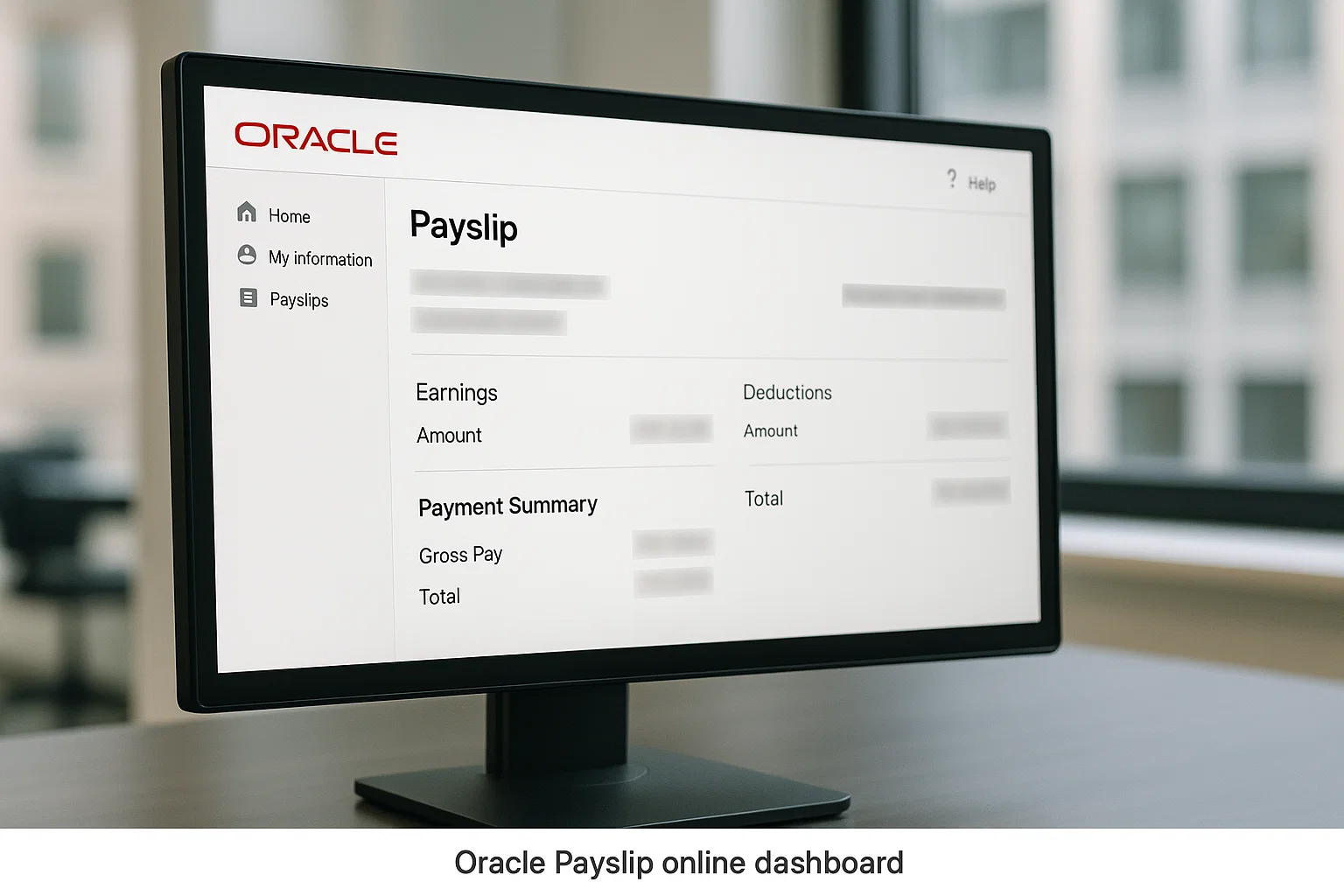
Here’s what matters: once you know how Oracle’s portal is arranged, everything becomes easier. Payslip access, downloads, tax details, even older slips you thought were lost all of it sits quietly behind a few menus. And today we’re going to walk through it in a way that feels human, not like the overly polished corporate manuals that assume you already know everything.
Getting Comfortable With Oracle’s Payroll System
Oracle’s payroll world comes in two flavours: PeopleSoft and HCM Cloud. Companies customise them, so your screen might not match your colleague’s at another job. But the logic stays the same: Oracle collects your salary data, turns it into a neat little slip, and stores it safely inside your Employee Self Service (ESS) account.
The magic here is automation. Your HR team enters pay data once, and the system calculates everything tax, allowances, holidays taken, deductions and delivers a digital payslip you can check anytime. It’s secure, always available, and doesn’t depend on HR being in the office.
The tricky part? The menus don’t always scream “click me”, which is why so many people miss the payslip section entirely.
Where Employees Usually Find Their Oracle Payslip
Think of Oracle’s system like a house with many identical doors. All of them lead somewhere important, but only one leads to payslips. Most companies rename menu items, so you might see:
- Payroll
- Pay
- Salary
- Pay & Benefits
- My Compensation
- Earnings Statements
- Documents
- Payslips
If that feels vague, that’s normal. Oracle gives HR the keys, and they label things however they like. The safest approach is to follow a simple route:
- Sign into Oracle Employee Self Service.
- Look for anything related to pay or documents.
- Inside that, you’ll find a section labelled Payslip, Salary Slip, or View Payslip.
Once you learn the pattern, it sticks.
Checking Your Oracle Payslip Online (The Simple Way)
Let’s move straight to the part everyone wants: seeing the numbers.
Here’s the flow most employees use daily:
Step 1 Open your ESS portal
Your company gives you a specific link. It usually looks like a long URL ending in /hcmUI/ or /psp/.
Step 2 Log in using your work credentials
Your username might be your employee number, email, or a custom ID.
Step 3 Find the payroll or payslip section
Look for the wording your organisation prefers. Only HR can rename these, so don’t worry if yours looks different.
Step 4 Pick the month you want
Oracle lists payslips in a tidy dropdown. Select the right period.
Step 5 Click View
This shows the slip on your screen.
Step 6 Download if needed
You’ll usually see a PDF or Download button. One click, and it’s yours forever.
That’s it. Six steps that turn into muscle memory once you’ve done them a few times.
What’s Inside an Oracle Payslip (And Why It Matters)
A payslip should never feel like a puzzle. Oracle layouts may vary, but the structure stays familiar. You’ll usually see:
Basic Salary
The fixed amount you earn before any extras or deductions.
Allowances
Travel, meals, shift allowances, or job-specific benefits.
Overtime / Premium Pay
Extra hours, bank holiday shifts, or weekend rates.
Bonuses / Incentives
Performance-based pay, quarterly bonuses, or one-off rewards.
Tax Deductions
PAYE, National Insurance, or region-specific tax lines.
Pension Contributions
Your share and the employer’s contribution.
Other Deductions
Loans, advances, charity contributions, or benefits purchased via payroll.
Net Pay
What actually lands in your bank account.
Everything shows up clearly, but the most helpful part is consistency each month follows the same pattern, so spotting changes is easier.
Downloading Your Oracle Payslip Without Stress
Sometimes you don’t want to just view the slip you need the file. Maybe for a visa application, a mortgage check, a loan request, or simply to stay organised. That’s where Oracle’s download button becomes your favourite thing.
Most screens offer:
- View (opens in browser)
- Download PDF (saves to your device)
If you’re on a work computer with strict download rules, save the file to your home folder, not the desktop. Many companies block desktop downloads by default.
On mobile, the PDF should open in your phone’s viewer. Save it locally or upload it straight to your cloud storage.
A small tip here: rename your payslips as soon as you download them. “Payslip_March2025.pdf” is far friendlier than the auto-generated filenames Oracle loves using.
EA Oracle Payslips Login What It Actually Means
If your employer uses “EA Oracle Payslips login”, you’re simply accessing Oracle through a different doorway. EA (Enterprise Access) is a layer added by some organisations for extra security.
Nothing changes in your payslip. Only the login and interface do.
Here’s what you might notice:
- A different-looking login page
- Two-step verification
- An “EA” badge or logo
- Slightly different menu labels
The payslips themselves stay exactly the same. So if someone at work says, “Use the EA portal”, they’re not referring to another payroll system just a different gateway into Oracle.
Using the Oracle Payslip App on Your Phone
Some employers allow mobile access through an Oracle-branded app or a custom company app powered by Oracle HCM. If your workplace supports it, the mobile experience is actually smoother than desktop.
Here’s how it usually goes:
- Download the app your HR team recommends (Oracle HCM, Fusion, or the company’s internal app).
- Log in with the same credentials as your ESS portal.
- Tap the menu icon.
- Choose Payslip, Salary, or Payroll.
- Select a month.
- Tap Download if needed.
The best part? Apps often show notifications when a new payslip appears. No more guessing when salary is processed.
If your app doesn’t show payslips, don’t worry not all companies enable that module. It doesn’t mean your account is broken, just that your HR team hasn’t activated it.
Fixing Common Oracle Payslip Problems
Every payroll system has its little quirks, and Oracle is no exception. Let’s walk through the issues that come up most often and how to handle them calmly.
1. You can’t log in
This happens more than people admit.
Possible reasons:
- Password expired
- Account locked after too many attempts
- Company enforced a password reset
- VPN required for access
Try resetting your password first. If that fails, HR or IT must unlock the account manually.
2. Your payslip isn’t showing for this month
Two possibilities:
- Payroll hasn’t processed yet
- HR hasn’t published the payslip to employees
Give it a few hours or check with payroll if everyone else already received theirs.
3. Download button missing
Sometimes the PDF module isn’t enabled for certain devices especially iPhones. Switch to desktop or try another browser.
4. Wrong tax code showing
Never ignore a tax mistake. Oracle only displays what HMRC sends to your employer.
Tell payroll immediately. They’ll update the tax code once HMRC sends correct details.
5. Your net pay looks different from last month
Check overtime, benefits, unpaid leave days, or backdated deductions. Oracle highlights these changes clearly.
6. You see “Access Denied”
This means your account permissions changed. Only HR or system admin can fix it.
7. The portal loads slowly
Oracle sometimes runs heavy background processes after payroll day. Try again later or use a faster network.
These small annoyances happen, but they’re usually fixed faster than expected.
When It’s Time To Contact HR or Payroll
Even the best self-service system can’t replace humans completely. Some issues genuinely require your HR or payroll team’s input.
Reach out to them if you experience:
- Missing payslips from earlier months
- Incorrect salary details
- Duplicate deductions
- Pension shown incorrectly
- Name or employee ID mismatches
- Locked ESS account
- No payroll section visible at all
These aren’t things you can fix on your end. Oracle shows data; it doesn’t modify it.
A Handy Tip That Saves You Time
Bookmark your payslip page the moment you find it. Seriously.
The ESS portal is large, and menus shift around with every update. One saved link keeps you from wandering through tabs again next month.
Another habit worth picking up: download each payslip and store it in a single folder. One day, when you need three years’ worth of salary slips for a mortgage, you’ll thank your past self.
Short FAQs Based on Your Search Intent
How do I find my Oracle payslip?
Log into Employee Self Service, open the payroll or payslip section, and choose the month you want.
What’s included in an Oracle payslip?
Your salary breakdown, allowances, overtime, deductions, pension, tax, and net pay.
Does Oracle have a payroll system?
Yes. Oracle HCM Cloud and Oracle PeopleSoft include complete payroll modules used by global companies.
Can I check salary slips online?
Absolutely. Oracle provides online viewing and PDF downloads through ESS.
Is there an Oracle payslip app?
Some companies enable a mobile app version. It depends on your employer’s setup, not Oracle itself.

Rishi Sharma, experienced blogger & WordPress developer, excels in digital marketing & SEO. Delivers high-quality content at https://blog.spinbot.uk/, enhancing online visibility & earning potential.