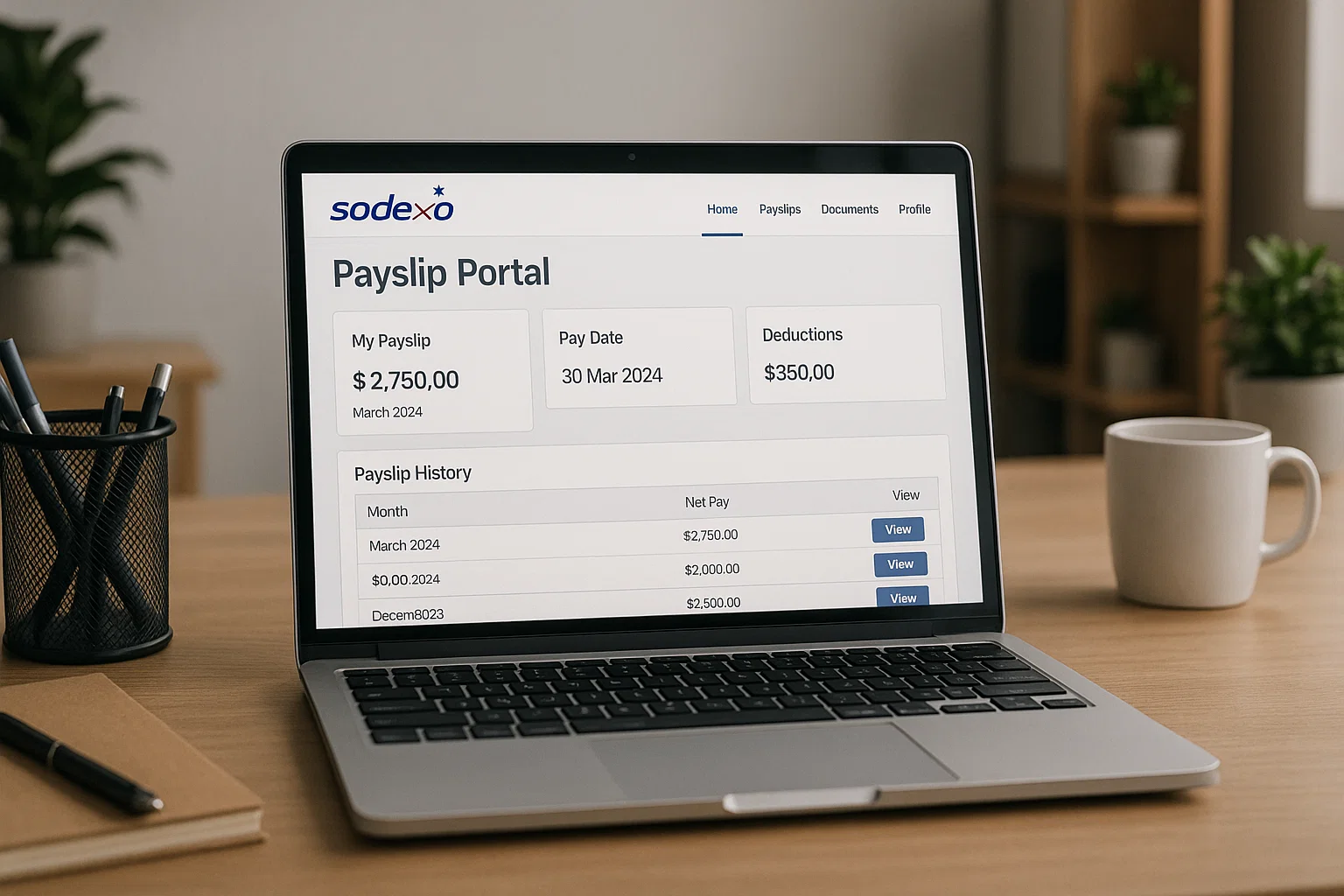
Let’s get into it step by step, nice and calmly, the way we break things down when tech feels unnecessarily complicated.
Getting a Sense of What You’re Looking At
Before diving into logins and portals, it helps to know what a Sodexo payslip actually includes. The layout can look a little busy at first, especially if your tax code recently changed or your employer has adjusted overtime. But once your eyes settle, the structure is straightforward.
You’ll normally see your gross pay, tax, NI deductions, pension contributions, holiday pay, adjustments, and your final net pay. If you’ve picked up extra shifts or worked bank holidays, those entries show up too. And because many employees use their payslip when applying for rentals, loans, or Universal Credit, you want everything clear and easy to download.
Bottom line: a payslip isn’t just a record it’s proof. You need access, and you need it fast.
A Quick Pause on Names: Sodexo’s Rebranding Situation
Here’s where it gets slightly confusing for people who haven’t kept up with the updates. Sodexo as a company still exists, but its benefits and rewards division the part many employees interact with started using the name Pluxee in several countries. Some regions still show Sodexo Hub branding, while others are transitioning.
The good news? Your payslip access doesn’t suddenly change because the company refreshed its logo. If your employer handles payroll through Sodexo Hub, you’ll still log in the same way. If they switched to Pluxee or another provider, you would’ve received a notice from HR.
For now, all you need to know is this: the name might shift from Sodexo to Pluxee depending on where you’re based, but your access instructions remain the same unless your employer specifically says otherwise.
Walking Through the Login Process Calmly
This is the part that throws most people off, especially when your employer uses a custom link. Sodexo doesn’t have just one universal payslip portal because different companies use different payroll systems under the Sodexo umbrella. Some use Sodexo Hub, some connect through ADP, and others run everything through an employer-specific HR platform.
Here’s the typical flow:
1. Start with the link your employer provided.
Every company has its own entry point. Trying to log in from Google often sends you to the wrong region.
2. Enter your username or employee ID.
Some employees log in with email; others use staff numbers.
3. Add your password.
If you haven’t logged in for a while, assume the password needs resetting. Sodexo platforms time out faster than most people expect.
4. Complete two-step verification if enabled.
Not every employer uses it, but many do.
5. Once you’re in, look for a tab labelled Pay, Payslips, or Documents.
The wording depends on the payroll backend your employer chose.
If you’re logging in for the first time, you’ll likely have a registration link or an activation email waiting for you. More on that a bit later.
How to Download Your Sodexo Salary Slip Without Any Fuss
Once you’ve managed to log in, the download part is usually the easiest. You’ll see a list of payslips month-by-month, each with a PDF icon or a Download button next to it. Click, save, done. If the PDF doesn’t open, it’s often your browser’s built-in viewer giving you grief rather than the payslip itself.
A few small reminders people forget:
- Make sure your browser’s pop-up settings don’t block the file.
- If you’re on your phone, be patient PDFs can take a moment.
- If you need payslips from previous years, scroll down or switch to “Archive”.
A lot of employees also like to print their payslip. You can do that directly from the PDF, but always check your tax code first so you’re not filing outdated information with your paperwork.
Does Sodexo Use ADP? Clearing Up the Mystery
This question pops up more than you’d think, so let’s clear the air. Sodexo itself doesn’t universally use ADP but many Sodexo-managed workplaces do. Payroll varies by contract. Some teams have their payslips generated through ADP iHCM. Others receive theirs through Sodexo Hub. And certain employers outsource payroll to another provider entirely while keeping Sodexo for benefits only.
How do you know which one you’re supposed to use?
Your employer or HR department will have sent the correct link on your first day or during onboarding. If your login page says ADP, then your payslips live in ADP. If it says Sodexo Hub, then that’s your home base.
If you’re still unsure, the quickest trick is asking payroll one simple question:
“Which system generates my payslips?”
That usually gets you an answer faster than guesswork.
Using Sodexo Hub on Your Phone
Most people want quick access while they’re on break or commuting, so the question comes naturally: Can I use Sodexo Hub on my phone? Yes, you absolutely can. You don’t need a special Sodexo payslip app unless your employer provides one. The majority of employees simply log in through their mobile browser.
A few tips that make it smoother:
- Use Chrome or Safari instead of in-app browsers from social apps.
- Turn your phone sideways if the payslip list looks cramped.
- Save the login page as a home-screen shortcut it acts like an app.
If your employer has enabled mobile-friendly views, the whole experience becomes even easier. Some teams do get a branded app depending on contract type, but that varies widely.
When Login Doesn’t Work and You Want to Give Up
Let’s be honest payroll portals are famous for acting up at the worst possible moment. If your Sodexo payslip portal refuses to cooperate, the solution is usually simpler than you think.
Try these quick resets:
Password issues:
Reset it. Even if you think you remember it perfectly, reset it anyway. These systems often expire passwords silently.
Account locked:
Too many login attempts can freeze it. Leave it for 15 minutes or contact payroll.
Email not recognised:
Check if you registered using your personal email or your employer’s domain.
Page not loading:
Use a different browser or clear cache. Sodexo portals sometimes struggle with outdated cookies.
Employer changed systems:
If you suddenly can’t log in after a company-wide update, ask HR. Many workplaces switch from Sodexo Hub to ADP or vice versa at the start of a new financial year.
If none of these work, payroll support is your best friend. They can reset accounts in seconds.
Making Sense of the Payslip Itself
Payslips can feel like a maths puzzle when you’re rushing, so take a minute to look at each part separately. Here’s a quick walk-through of what you’ll usually see.
Gross Pay:
The total amount before deductions.
Tax (PAYE):
Based on your tax code. If your code looks unusual, ask payroll or HMRC.
National Insurance:
A standard deduction for UK employees.
Pension:
This could be statutory or employer-specific.
Holiday Pay:
Shows separately if you’re on hourly pay or irregular shifts.
Overtime / Enhancements:
Night shifts, weekends, bank holidays are often listed line-by-line.
Adjustments:
Back pay, corrections, bonuses, or deductions.
Net Pay:
The amount that actually lands in your bank account.
Once you get comfortable reading the layout, spotting mistakes becomes easy. And mistakes do happen especially around overtime and tax code changes so it pays to keep an eye on it.
Signing Up for Your Sodexo Payslip Account
If you haven’t registered yet, don’t worry. First-time access takes only a few minutes.
Here’s the usual flow:
- Your employer gives you a registration link or activation email.
- You enter your employee details to verify your identity.
- You choose a username and create a password.
- You confirm your email.
- You log in and your payslip appears on your dashboard.
Some employers require an “organisation code” or “company ID”. If you see that field, don’t guess you’ll need the exact code from HR for the system to recognise you.
Once you’re registered, you shouldn’t need to set it up again unless your employer migrates to a new payroll platform.
When It’s Better to Contact Payroll Directly
Even though digital payslips are meant to keep things simple, there are moments when speaking to payroll is the quickest solution.
Reach out if:
- Your tax code looks wrong.
- Overtime is missing or incorrectly logged.
- Deductions don’t match your contract.
- You can’t access the portal after multiple resets.
- Your payslip shows the wrong job title or location.
These issues are tiny for them but massive for you, so don’t wait.
If your company has a Sodexo-specific HR support channel, use that they’re usually faster than generic customer service.
Quick Answers to the Questions Everyone Asks
How do I download my Sodexo salary slip?
Log in, open the payslip list, click the PDF icon, and download.
Does Sodexo use ADP?
Some employers under Sodexo use ADP, others don’t. It depends on the payroll arrangement.
What is the new name for Sodexo?
The benefits division is transitioning to the name Pluxee in several regions, but Sodexo remains widely used.
Can I use Sodexo Hub on my phone?
Yes mobile browsers work perfectly. Some employees also receive access to an app depending on contract type.
Where do I find the payslip login link?
Your employer provides it. There is no universal public link that works for every employee.
A Final Word Before You Log In Again
Payroll shouldn’t feel like a maze, and once you know which portal your employer uses, everything falls into place. Your Sodexo payslip is one of those things that seems complicated only until you’ve done it once. After that, it’s just another five-second task on payday. Keep your login saved, check your tax code once in a while, and don’t hesitate to nudge payroll when something looks off. It’s your salary you deserve clarity.

Rachel combines her technical expertise with a flair for clear, accessible writing. A graduate of the University of Edinburgh, she specializes in creating detailed tech-focused content, Govt Jobs, Payslips that educates our readers about the latest in web development and SEO tools at Spinbot blog.