Let’s break it down simply: some do, most don’t, and the difference matters more than you might think. Here’s everything you need to know before you start hunting for sound settings or ordering an extra soundbar.
Why Most Gaming Monitors Skip Built-In Speakers
Here’s the truth most gaming monitors don’t include speakers, and it’s not a mistake. Manufacturers often ditch them on purpose.
Why? Because gamers, by nature, chase visual performance over everything else. When brands like ASUS ROG, Acer Predator, or LG UltraGear design a monitor, they pour their budget into high refresh rates, colour accuracy, and ultra-low latency. Tiny built-in speakers can’t compete with that priority list.
Think of it like a sports car: it’s built for speed, not storage. In the same way, gaming monitors are built for graphics, not great audio.
There’s another reason too sound quality in slim monitors is usually terrible. Thin bezels leave almost no space for decent speaker drivers, so even when you get built-in sound, it’s often weak, tinny, and distant. Many brands decided it’s better to skip it altogether than to offer poor-quality audio that ruins immersion.
But Wait Some Gaming Monitors Do Have Speakers
Yes, a handful of models still include them. They’re mostly found in mid-range or productivity-focused monitors that double up for casual gaming or office use. You’ll often spot speakers in brands like BenQ, HP, and Samsung’s mid-tier displays.
For example:
- BenQ EW3270U – a 32-inch 4K monitor with HDR support and built-in speakers.
- ASUS TUF VG27AQL1A – solid gaming specs and stereo speakers, though still not studio-grade.
- Samsung Odyssey G5 (select models) – includes small 2-watt speakers, enough for light gaming or YouTube.
So yes, they exist. But if you’re buying a monitor specifically for immersive gaming, you’ll almost always get better results with external audio gear.
How to Know if Your Monitor Has Speakers
Here’s where most people get stuck. You’ve plugged in your console or PC, the visuals are stunning, but there’s zero sound. Before you start blaming HDMI cables or your graphics card, check these simple clues.
1. Look up your model online.
Go to the manufacturer’s site and type your monitor’s exact model number. Look for words like “built-in speakers,” “audio output,” or “internal sound.” If you can’t find it anywhere, assume it doesn’t have them.
2. Check the back for audio ports.
If there’s a 3.5mm headphone jack or audio out port, your monitor might have basic audio support but that doesn’t always mean speakers. Some monitors pass sound through the HDMI input so you can connect headphones or a soundbar, even without built-ins.
3. Open your monitor’s settings menu.
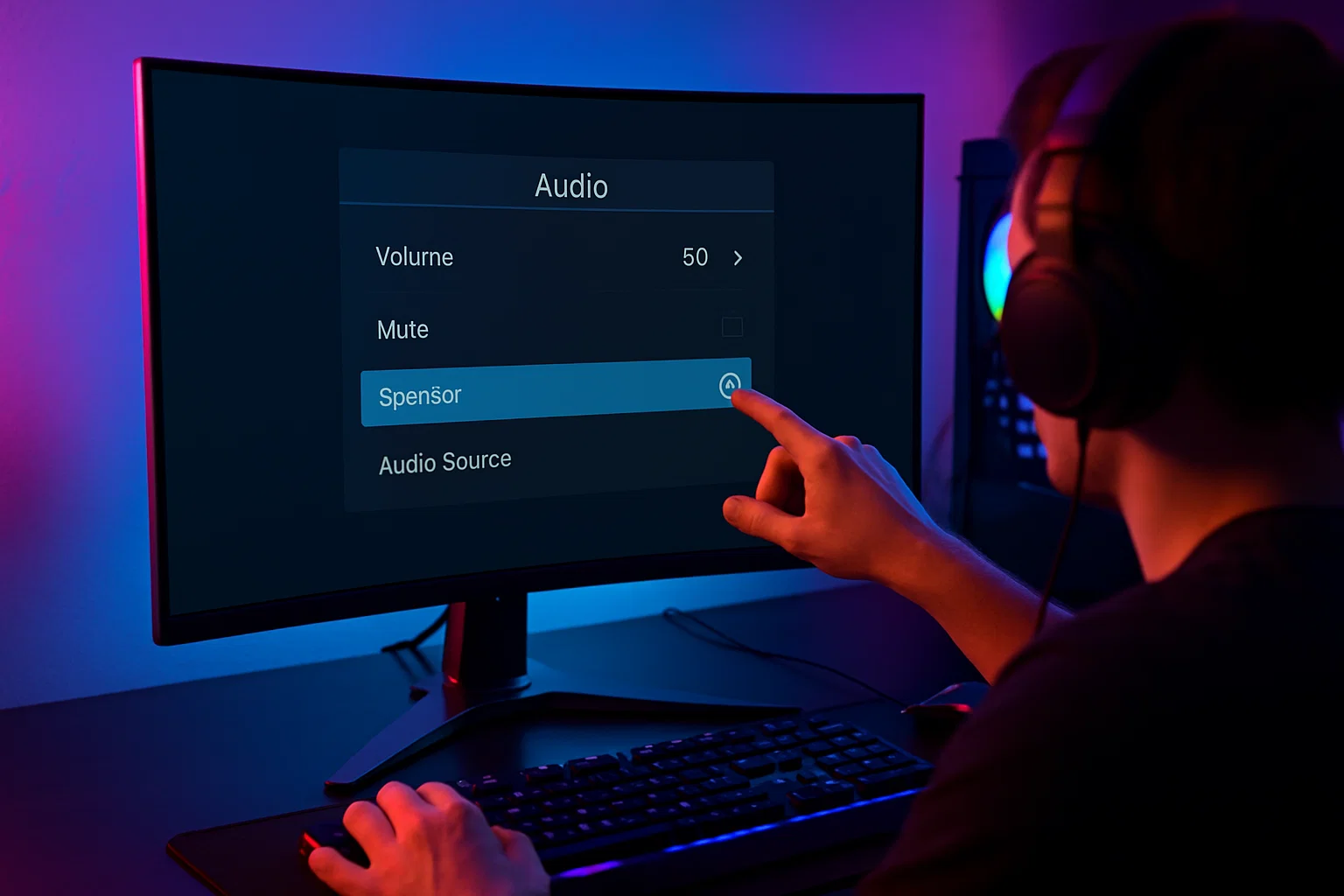
Use the on-screen display (OSD) controls look for “Audio,” “Sound,” or “Volume.” If you find those options, it’s a good sign. If the entire section is missing, that’s another hint that your monitor doesn’t have speakers.
4. Try plugging in an HDMI device.
HDMI and DisplayPort both carry audio signals. If you connect a console or laptop and still hear nothing even after checking Windows or console sound settings your monitor likely doesn’t have speakers.
How to Get Sound on a Gaming Monitor
Alright, so your monitor’s silent. What now? Don’t worry you’ve got several easy fixes.
1. Use HDMI or DisplayPort Audio
If your monitor supports HDMI (and most do), that single cable can carry both video and audio. The trick is setting your PC or console to output sound through that HDMI connection.
For Windows:
- Right-click the speaker icon on the taskbar.
- Choose Sound settings → “Output device.”
- Select your monitor (it might show up as the monitor model name or HDMI device).
If your monitor has internal speakers, you’ll hear it instantly. If not, you can connect headphones or external speakers to the monitor’s audio out jack instead.
2. Use a 3.5mm Audio Cable or External Speakers
If your monitor has a headphone output, plug in a wired speaker or headset. This bypasses your computer’s sound card and sends audio directly from the display.
External speakers are game-changers for immersion. Even a small desktop soundbar like the Creative Stage Air or Razer Leviathan V2 can make a world of difference. You’ll get real depth, better bass, and that cinematic feel every gamer secretly craves.
3. Connect Bluetooth Speakers or Headphones
If your gaming setup includes a console or modern PC, Bluetooth audio is an easy workaround. Just pair your favourite headset or portable speaker directly to the system instead of the monitor. Some high-end monitors (like Samsung’s Smart Monitor series) even support Bluetooth output natively.
The upside? No messy wires. The downside? A tiny bit of delay so if you’re playing rhythm games or competitive shooters, stick to wired audio.
4. Route Audio Through Your Console or PC
Sometimes the best option is skipping the monitor entirely. Connect your speakers or headphones straight to the console controller, sound card, or PC motherboard instead. For example:
- Xbox and PlayStation controllers support wired headphones directly.
- PC users can plug into front panel jacks or use USB headsets for zero-latency audio.
This keeps sound crisp and responsive ideal for eSports or FPS players.
Should a Gaming Monitor Have Speakers?
Here’s the debate: should brands even bother adding speakers when most gamers already use headsets or dedicated speakers?
Honestly, it depends on how you play.
If you’re a casual gamer who plays narrative titles, watches Netflix between sessions, or wants less clutter on your desk, built-in speakers are convenient. They’re not perfect, but they do the job.
But if you’re into competitive gaming, streaming, or audio-sensitive genres like horror, racing, or shooters you’ll want external sound. Built-ins simply can’t deliver the same power, bass, or directional clarity.
Pros and Cons of Monitors with Built-In Speakers
| Pros | Cons |
|---|---|
| Convenient, no extra setup needed | Sound quality usually weak |
| Saves desk space | Often lacks bass and depth |
| Great for office work or casual use | Not immersive for gaming |
| HDMI audio works instantly | May raise monitor cost without adding value |
In short: nice to have, not a deal-breaker. You’re better off choosing your monitor for display specs refresh rate, response time, and resolution and sorting out sound separately.
Best External Sound Options for Gaming Monitors
Let’s be real: once you hear your favourite game through proper speakers, you’ll never go back to built-ins. Here’s what works best depending on your space and budget.
1. Compact Soundbars
Perfect for small desks. They sit neatly under your monitor and often include Bluetooth for music playback.
- Creative Stage Air V2 – slim, affordable, solid bass.
- Razer Leviathan V2 – stylish RGB, tailored for gamers.
- Logitech G560 – immersive lighting synced with your gameplay.
2. 2.1 Desktop Speaker Systems
If you’ve got space, a two-satellite setup with a subwoofer gives punchier sound.
- Edifier R1280DB – audiophile-approved clarity at a fair price.
- Klipsch ProMedia 2.1 – deep, cinematic bass for big-screen energy.
3. Headsets
For competitive play or late-night sessions, a good headset is unbeatable.
- SteelSeries Arctis Nova 7 – wireless with low latency.
- HyperX Cloud II – legendary comfort and clear positional sound.
- Razer BlackShark V2 – lightweight and tuned for voice clarity.
4. Bluetooth Speakers
If you prefer portability, a compact Bluetooth speaker does the trick especially if your console or PC supports wireless output.
- JBL Charge 5 – loud, clean, portable.
- Sony SRS-XB33 – extra bass for explosions and music.
Common Sound Issues (and How to Fix Them)
Sometimes you do have a monitor with speakers, but there’s still no sound. Don’t panic here’s what to check:
1. Wrong Output Device:
Your computer might still be sending sound to old speakers or headphones. Change the default output to the monitor under sound settings.
2. Volume Off or Too Low:
Obvious, but easy to miss. Turn up both system and monitor volume separately.
3. HDMI Cable Issue:
Make sure you’re using a proper HDMI cable (not a DVI adapter). DVI doesn’t carry sound.
4. Drivers or Firmware:
Update your GPU drivers or monitor firmware. Some models need software updates to handle HDMI audio correctly.
5. Console Settings:
On PlayStation or Xbox, manually select HDMI audio in the system menu. Consoles sometimes default to optical or controller output.
What’s Better Than Built-In Sound?
If you want to level up your setup without spending a fortune, here’s what most gamers do:
- Soundbar under the monitor for immersive soundstage
- Closed-back headphones for competitive focus
- External DAC (Digital-to-Analog Converter) for audiophile clarity
- USB microphones for streamers needing voice precision
Even a £40–£60 upgrade can completely change your experience. The crisp click of reloading, the footsteps behind you, the distant thunder of a storm in-game it all feels alive once you escape those weak built-ins.
The Final Take
Here’s the bottom line: don’t buy a gaming monitor expecting great sound. Buy it for visuals refresh rate, resolution, colour, and design and treat audio as a separate investment.
That’s not a bad thing. In fact, it gives you the freedom to build your own perfect setup whether that’s a compact soundbar, a thundering 2.1 system, or the clean precision of a wireless headset.
Your monitor’s job is to show you every pixel. Let your audio gear handle the rest.
FAQs About Gaming Monitors and Sound
How do I get sound on my gaming monitor?
If it has built-in speakers, make sure HDMI or DisplayPort is selected as your sound source. If not, connect external speakers through the headphone jack or your PC.
Should a gaming monitor have speakers?
Not necessarily. Most gamers prefer external audio for better sound quality. Built-ins are fine for light gaming or minimal setups.
Do gaming monitors have built-in sound?
Some do, especially mid-range or office-plus-gaming models. But dedicated gaming monitors often skip them for design and performance reasons.
How do I know if my gaming monitor has speakers?
Check your model’s specs, look for volume options in the on-screen menu, or see if the manufacturer mentions “audio output” or “stereo speakers.”

Emily is a skilled content strategist and writer with a passion for digital marketing and SEO trends. A Leeds alumna, she brings her expertise in media communication to Spinbot UK Blog, crafting engaging content that drives traffic and enhances user engagement.