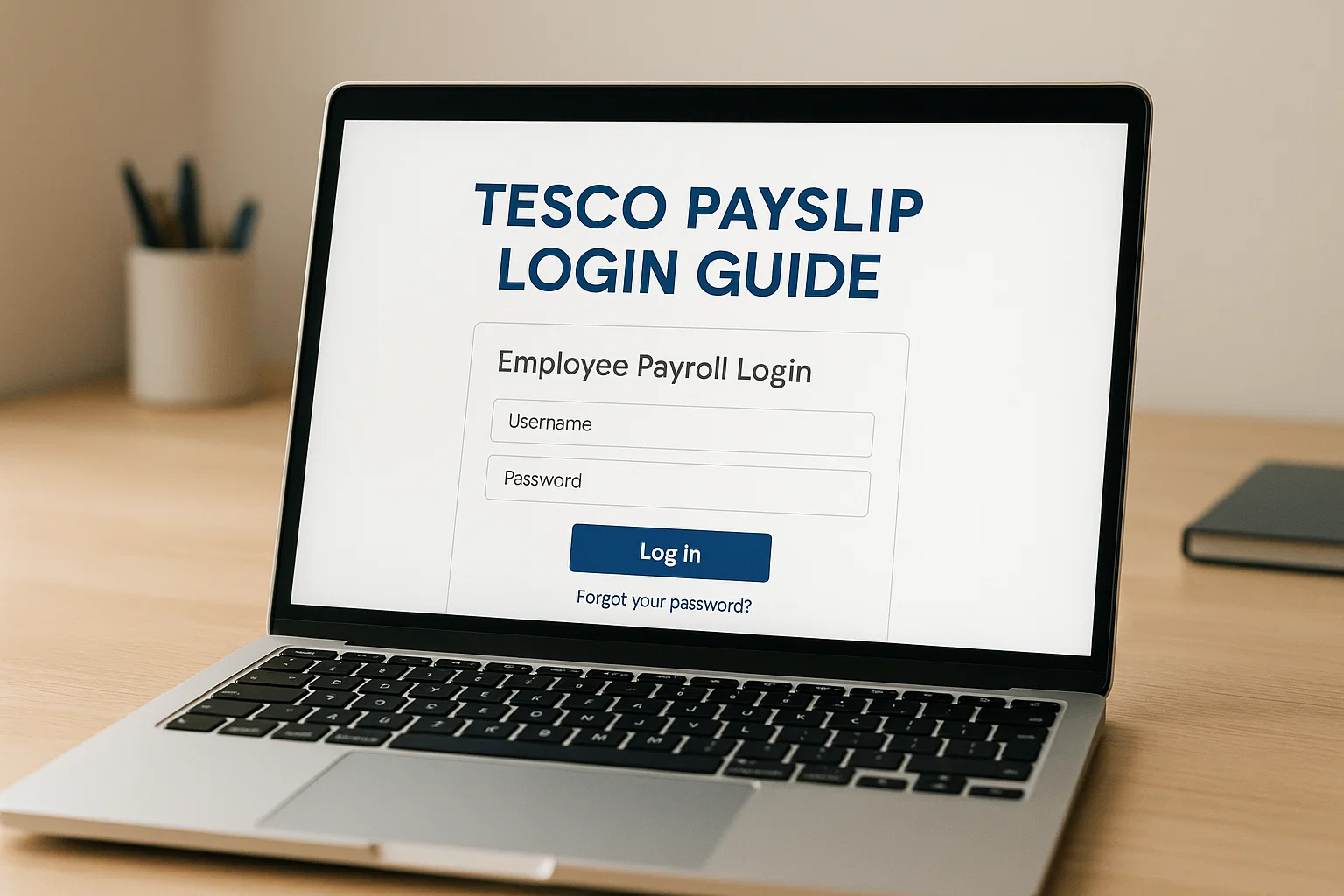
Here’s the good news: once you understand which portal does what, the whole thing becomes simple. Let’s walk through it in a way that feels less like a technical guide and more like someone sitting beside you, helping you click the right buttons.
Why Tesco Payslips Confuse People in the First Place
Tesco didn’t stick to one portal over the years. You’ll see terms like Payslipview, Our Tesco, Work & Pay, and even references to an old mobile system. New employees sometimes use one platform while colleagues use another. Add different login requirements employee number, activation code, password resets and you’ve got a recipe for confusion.
Here’s what actually matters:
Most Tesco employees today get their payslip through Payslipview.com.
Some store teams use Work & Pay, but Payslipview is still the main system.
Once you know where your payslips live, everything else feels a lot easier.
Where Your Tesco Payslips Are Stored Today
There are two main portals you’ll see:
1. Payslipview.com
This is the long-running, primary platform for Tesco employee payslips. If you hear “Tesco Payslip Online,” this is what they mean.
You’ll use it for:
- Viewing payslips
- Checking tax details
- Downloading PDF versions
- Accessing pay history
- Seeing overtime and holiday pay
This portal needs an employee number and an activation code (from your most recent payslip).
2. Tesco Work & Pay (part of Our Tesco)
Some employees use this instead of Payslipview, especially newer stores or departments that migrated to it. Work & Pay shows rotas, holidays, payslips, and personal info in one place.
If your manager mentions Work & Pay but you only see Payslipview, don’t worry Tesco often rolls systems out in phases.
How to Log In to Your Tesco Payslip (Step-by-Step)
Let’s keep this simple and smooth. Here’s how to access your payslip via Payslipview.com.
Step 1: Visit the official portal
Go to: www.payslipview.com
The page is plain and straightforward no app, no fancy graphics, just the essentials.
Step 2: Enter your Employee Number
Every Tesco colleague has one. You’ll find it on:
- Your staff card
- Your contract
- An older payslip
Type it in carefully; one digit off and the system won’t recognise you.
Step 3: Enter your Activation Code
This code changes every pay period and appears on your most recent payslip. Tesco uses this as an added security step.
If you don’t have the latest payslip yet (first day at work, for example), ask your manager there’s always a workaround.
Step 4: Add your password and security answers
Once you’re past the employee number and activation code, the portal takes you to your usual login.
- Set your password
- Choose security questions
- Confirm your profile
After this, you’ll move straight to your payslip dashboard every month.
Step 5: View and download your payslip
Inside the portal, you’ll see a list of dates. Click any one and you’ll get:
- Gross pay
- Net pay
- Tax
- NI contributions
- Overtime
- Holiday pay
- Pension deductions
You can download a PDF for printing or record-keeping.
Reading a Tesco Payslip Without Getting Lost
A payslip is supposed to make your life easier, not overload you with numbers. Here’s how to read the important parts without squinting through every line.
1. Employee details and department
This is your name, employee number, and your store or department. Useful when you need proof of work for anything official.
2. Basic Pay
This is your agreed wage based on contract hours. No overtime included here.
3. Overtime
If you picked up extra shifts, you’ll see those hours here. Tesco usually labels overtime clearly, so you don’t have to guess what’s what.
4. Holiday Pay
When you book paid leave, this is where the amount appears.
5. Tax Code
This tiny code controls how much tax HMRC takes from you. If it suddenly changes, it’s worth checking why.
6. National Insurance (NI) Category
Each category represents your NI contribution rate. Most employees fall under letters like A, C, or H.
7. Deductions
This section can include:
- Pension contributions
- Union fees
- Student loan deductions
- Court orders (if applicable)
8. Net Pay
This is the number everyone looks for the actual amount landing in your bank account.
Once you understand these eight parts, you’ll read any Tesco payslip with ease.
Tesco Payslip on Mobile: What Works and What Doesn’t
Tesco doesn’t currently offer an official Tesco Payslip App, even though many employees search for one. Instead, you’ll use your mobile browser.
Here’s what works well:
- Payslipview loads cleanly on most phones.
- You can scroll through pay history easily.
- Downloading PDFs works on newer devices.
What doesn’t always work smoothly:
- Old Android browsers
- Pop-up blocking (it can stop PDF downloads)
- Autofill for employee numbers
Quick tip: Use Chrome on Android or Safari on iPhone for fewer hiccups.
If your store uses Work & Pay, the mobile experience is much better. You’ll see rotas, hours, holidays, and payslips in one clean interface.
Forgot Your Password? Missing Your Activation Code? Here’s the Fix
Everyone gets locked out now and then. Here’s how to recover without stress.
If you forgot your password
- Click “Forgot Password”
- Answer your security questions
- Reset your password
If you can’t remember the answers, you’ll need help from your line manager or Tesco Payroll.
If your activation code isn’t working
This happens when:
- You’re using an old payslip
- The code has expired
- There’s a typo
Ask your manager for the new activation code, or wait for your next payslip if payday is close.
If your account gets locked
The system locks you out after too many wrong attempts. Don’t panic your manager can request a reset, or you can contact the payroll helpline through the internal Tesco directory.
SSP, OSP, and Payroll Terms Tesco Employees Always Ask About
Tesco payslips sometimes include terms that make you stop and wonder if you’re being underpaid or overpaid. Let’s break the big two:
SSP (Statutory Sick Pay)
This is the government’s minimum sick pay. If you’re on sick leave, SSP appears when Tesco pays you at the statutory rate.
OSP (Occupational Sick Pay)
Tesco provides its own sick pay scheme. If you qualify, you’ll see OSP instead of SSP.
Some payslips show both when you transition from one to the other. It’s normal, and the combined amount usually adds up correctly.
Other terms you might see:
- Adjustment (fixes from previous period)
- Arrears (delayed payments)
- Contra payment (reverses earlier entries)
If something doesn’t add up, report it early. Payroll is much easier to correct when it’s fresh.
Can You See Old Tesco Payslips? Yes Here’s How
Payslipview keeps a history of your past payslips. The exact length varies, but most employees can see records going back several years.
- Log in
- Head to the “Historical Payslips” or “Pay History” section
- Choose the date you want
- Download the PDF
If you’re an ex-employee, you may still access old payslips for a limited time. If the portal no longer recognises you, Payroll or HR can issue copies on request.
Payslipview vs Work & Pay: What’s the Real Difference?
Here’s a clean, simple comparison so you never mix them up again:
| Feature | Payslipview | Work & Pay |
|---|---|---|
| View payslips | Yes | Yes |
| Download PDFs | Yes | Yes |
| View rotas | No | Yes |
| Holiday booking | No | Yes |
| Personal details update | Limited | Yes |
| Mobile friendly | Basic | Much better |
If you’re only checking payslips, both do the job. If you’re managing your whole work life, Work & Pay is the better system if your store uses it.
How Tesco Pays You: The Basics
Tesco pays most store employees monthly, directly into your bank account. Some roles may be weekly, but monthly is the standard.
A few things worth knowing:
Bank Transfers
Money lands in your bank according to your store’s payroll cycle.
Pay Cut-Off Dates
Hours worked just before the payroll cut-off might appear in next month’s payslip instead of this one.
Overtime Approval
If overtime isn’t showing, it probably hasn’t been approved yet. Managers need to confirm hours before they appear in the system.
Troubleshooting: When Nothing Seems to Work
Let’s fix the common problems quickly:
1. Error: “Details Incorrect”
Double-check your employee number mistyping it is very common.
2. Page Not Loading
Try switching:
- From mobile to desktop
- From Wi-Fi to mobile data
- Or refresh with a different browser
3. PDF Won’t Download
Enable pop-ups in your browser.
4. Completely Locked Out
Ask your manager to contact Payroll Support. They can reset your credentials in minutes.
Why Keeping Your Tesco Payslips Matters More Than You Think
It’s tempting to ignore payslips once the money hits your account. But these little PDFs can be lifesavers when you need them.
People end up searching for old payslips when they:
- Apply for a loan or mortgage
- Apply for Universal Credit
- Need proof of income
- Want to confirm holiday pay
- Dispute incorrect hours
- Prepare end-of-year tax info
A neatly saved folder of PDFs can save hours of stress later on.
And once you understand how to navigate Tesco’s payroll systems, checking your pay becomes quick, calm, and drama-free.

Rachel combines her technical expertise with a flair for clear, accessible writing. A graduate of the University of Edinburgh, she specializes in creating detailed tech-focused content, Govt Jobs, Payslips that educates our readers about the latest in web development and SEO tools at Spinbot blog.