Let’s get straight into how Sage payslips actually work and how you can access yours in a way that feels quick, smooth, and stress-free.
What Sage Payslip Actually Is
Here’s the simple version. A Sage payslip is a digital version of your monthly salary slip, generated through Sage Payroll Services. Your employer runs payroll inside Sage, publishes your payslip, and you get instant access to it online no paperwork, no delays, no hiding in your inbox.
Employers choose Sage because it handles everything in one place: salary, tax code, deductions, overtime, holidays, pensions, payroll history, and compliance. For employees, the payslip becomes part of a neat little online hub where all your monthly earnings stay archived and easy to download.
It’s also different from a Sage Payment, which is simply the salary that hits your bank account. One is your record, the other is your money.
How Sage Payslips Work Behind the Scenes
You don’t see the payroll chaos behind the curtain, but here’s the short story of what happens long before you log in.
Your employer enters hours worked, allowances, deductions, NI, tax, student loans, or anything else that matters. Sage runs the calculations. Once payroll is approved, the payslip gets published to your online portal.
That’s when you receive a notification sometimes an email to your Outlook account, sometimes through the Sage app, depending on how your company set things up. Everything lives in the cloud, so your payslip is available even if you switch devices or lose access to a work laptop.
Some companies link Sage to the Government Gateway, especially for tax submissions or HMRC checks. Don’t worry you don’t need to log in to the Gateway to see your payslips, but you might see tax information mirrored across both systems.
How to Access Your Sage Online Payslip
Here’s where most people get stuck not because it’s complicated, but because there are multiple Sage products. The trick is landing on the right portal. Once you’re on the correct screen, the rest is easy.
Step-by-step login:
Step 1: Open the employee payslip portal shared by your employer.
Most organisations use:
https://www.sage.com/en-gb/hr/hr-software/employee-portal/
but some use a company-specific link. HR usually emails this when you join.
Step 2: Enter your email.
This will be the email address your employer added to Sage sometimes your personal email, sometimes your work-issued Outlook login.
Step 3: Type in your password.
If it’s your first time, you’ll be setting this up through an invitation link.
Step 4: Complete any verification step (if enabled).
A few employers use two-factor authentication for security.
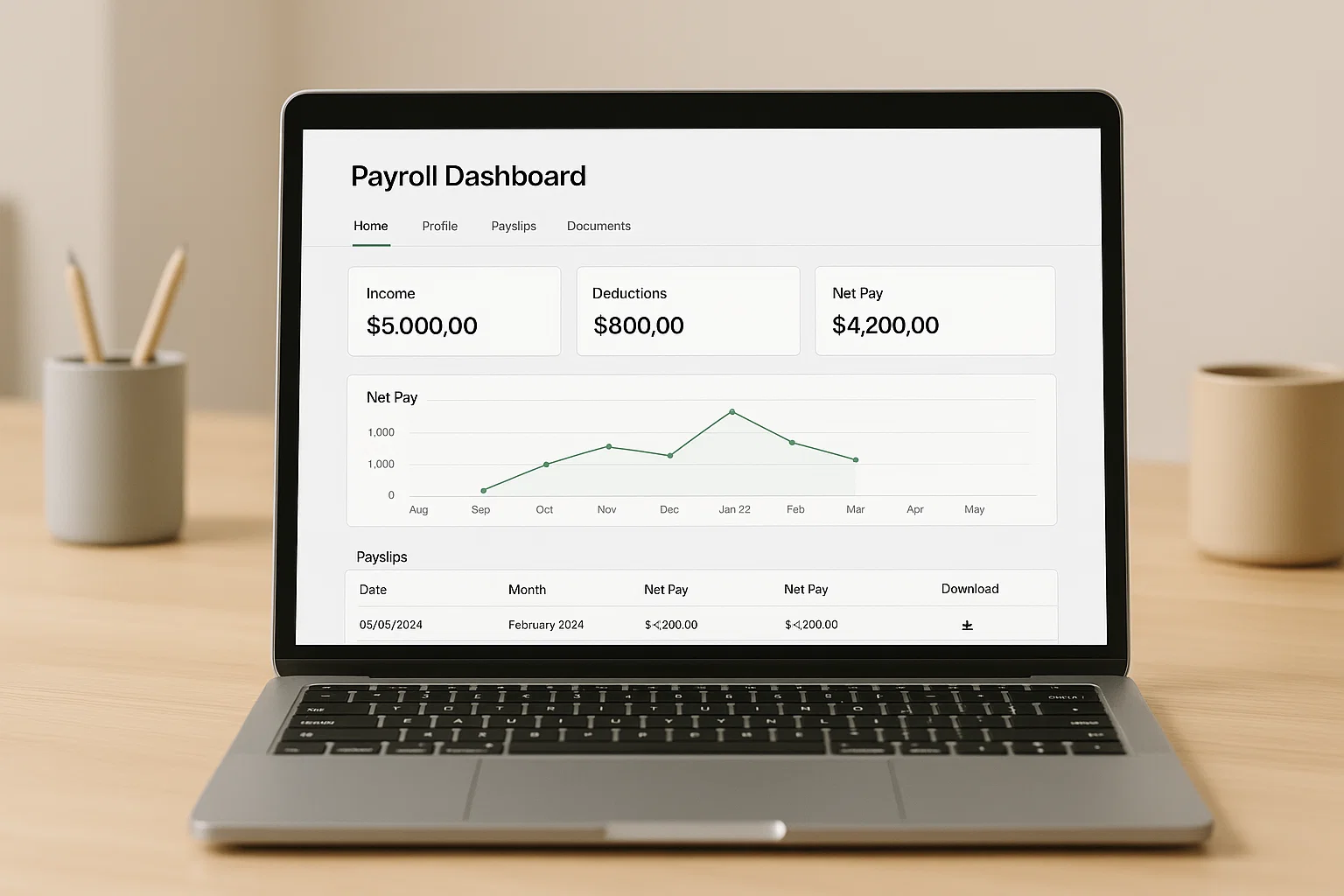
Step 5: You’ll land on your Payroll Dashboard, where payslips are listed month by month.
Open the latest one, zoom in on your tax code if you’re curious, and download the PDF if you want to save it offline.
That’s it you’re in.
How to Register for Sage Payslips (For New Users)
If you’re new to Sage, the first login always starts the same way: with an email invite from your employer.
Here’s how that onboarding looks:
1. Open the invitation email from Sage or your HR team.
It contains a secure link labelled “Register” or “Set Up Account.”
2. Create your password.
Sage only asks for one strong password no ten-step riddles.
3. Confirm your email.
You’ll receive a verification link so Sage knows it’s really you.
4. Log in for the first time.
Once your account is active, your dashboard will show your first payslip as soon as payroll publishes it.
You may see something called iD Sage this is simply Sage’s identity system that protects your login. Think of it like your digital badge.
How to Download or Print Your Sage Payslip
Some months you just need a paper copy bank loan, visa application, rental agreement, anything. Good news: Sage makes it effortless.
Here’s what you do:
- Log in to your Sage payslip account.
- Open the payslip you want.
- Hit Download to get a PDF.
- Print it normally from any device.
You can also download older payslips, P60s, P45s (if issued), and year-end summaries. Everything stays there, neatly organised.
How to Create Payslips on Sage (For Employers)
If you’re an employer or administrator dipping your toes into Sage for the first time, here’s a super simple rundown of how payslips get made.
- Add or update employee information.
- Enter hours, salary, bonuses, holidays, or deductions.
- Let Sage calculate PAYE, NI, pension, and everything else.
- Review the payroll run.
- Publish the payslips to the employee portal.
Once published, employees get access immediately no separate sending, no email attachments, nothing manual.
The Sage Payslips App (Mobile Access)
Some workplaces activate the Sage HR app, which includes a payslip section. Others use a company-branded version of Sage. Either way, the idea is the same: payslips on your phone.
With the app, you can:
- View this month’s salary
- Check previous payslips
- See holidays and shifts (if your employer uses those modules)
- Receive payroll notifications instantly
A common confusion is mixing up Sage HR with Sage Payroll they’re connected but not identical. If your app doesn’t show payslips, it means your employer uses desktop Sage Payroll without the mobile module. In that case, stick to the web portal.
Common Sage Payslip Login Issues (And How to Fix Them)
Let’s clear up the problems people hit most often and how to escape them quickly.
1. “This email doesn’t exist.”
Most likely cause?
Your employer added a different email to Sage.
Solution: Ask HR which email is registered.
2. Forgotten password.
Just click Forgot Password and follow the reset steps.
3. Logged into the wrong Sage portal.
There are multiple Sage products HR, Business Cloud, Accounting, Payroll, MySage…
Solution: Use the exact link your employer provided.
4. Employer hasn’t published the payslip yet.
Sage doesn’t show anything until payroll approves it.
Solution: Wait or ask HR when payroll goes live.
5. Work email locked or expired.
If you use an Outlook sign-in and the company disables your account, your payslip access may break too.
Solution: Request HR to update your email inside Sage.
6. Authentication loop (rare but annoying).
Clear your browser cache or try incognito mode.
If none of this works, you may need your HR team to refresh your account.
Sage Payslips Contact Number When You Should Call
Here’s the honest truth: employees rarely need to call Sage directly. Nine times out of ten, HR controls your access, not Sage.
But if your employer specifically tells you to contact Sage support, the general UK line is:
Sage Support (General Payroll): 0191 479 5955
(This can vary depending on your plan.)
Always try HR first. Sage isn’t allowed to modify your details unless the employer authorises it.
Understanding “What Is a Sage Payment?”
This confuses almost everyone.
A Sage Payment is not your payslip.
It simply means your salary was processed using Sage Payroll and then sent to your bank. You’ll sometimes see “Sage Payment” listed on your bank app on payday. That’s all.
Payslip = record
Payment = money
Payroll = the system that ties them together
Easy.
Is Sage Payslip Safe? Here’s the Real Answer
Yes. Sage uses secure servers, encryption, data protection standards, and works under strict UK payroll regulations. They also offer optional multi-factor authentication. Millions of employees use Sage every month, so the system is built with safety in mind.
Quick FAQs
How do I access my Sage online payslip?
Log in using the portal link your employer provided, enter your email and password, and open your payslip dashboard.
How does Sage payslips work?
Your employer processes payroll in Sage, publishes your payslip, and you access it online anytime.
What is a Sage payment?
It’s the payroll transfer to your bank account not the payslip itself.
How to create payslips on Sage?
Employers add pay data, run payroll, and publish payslips to the employee portal.
Is there a Sage payslip app?
Some employers use Sage HR app; others stick to the web version. Access depends on your company setup.
Does Sage connect with the Government Gateway?
Yes, for tax submissions but you don’t need Government Gateway to view payslips.
A Helpful Reminder Before You Log Out
Once you get the hang of Sage, checking your payslip becomes a two-minute job. No emails buried in your inbox, no printing headaches, no waiting for HR. Your entire salary history sits in one place, and you can access it from home, from work, from your phone wherever life takes you.
If your employer ever changes your access link or updates their payroll system, bookmark the new page so you can get to your payslips faster each month.
And if you ever want to tidy up your writing or refresh your payroll reports, tools like Spinbot can help you rewrite content smartly without losing meaning.

Rishi Sharma, experienced blogger & WordPress developer, excels in digital marketing & SEO. Delivers high-quality content at https://blog.spinbot.uk/, enhancing online visibility & earning potential.