Let’s make it easier.
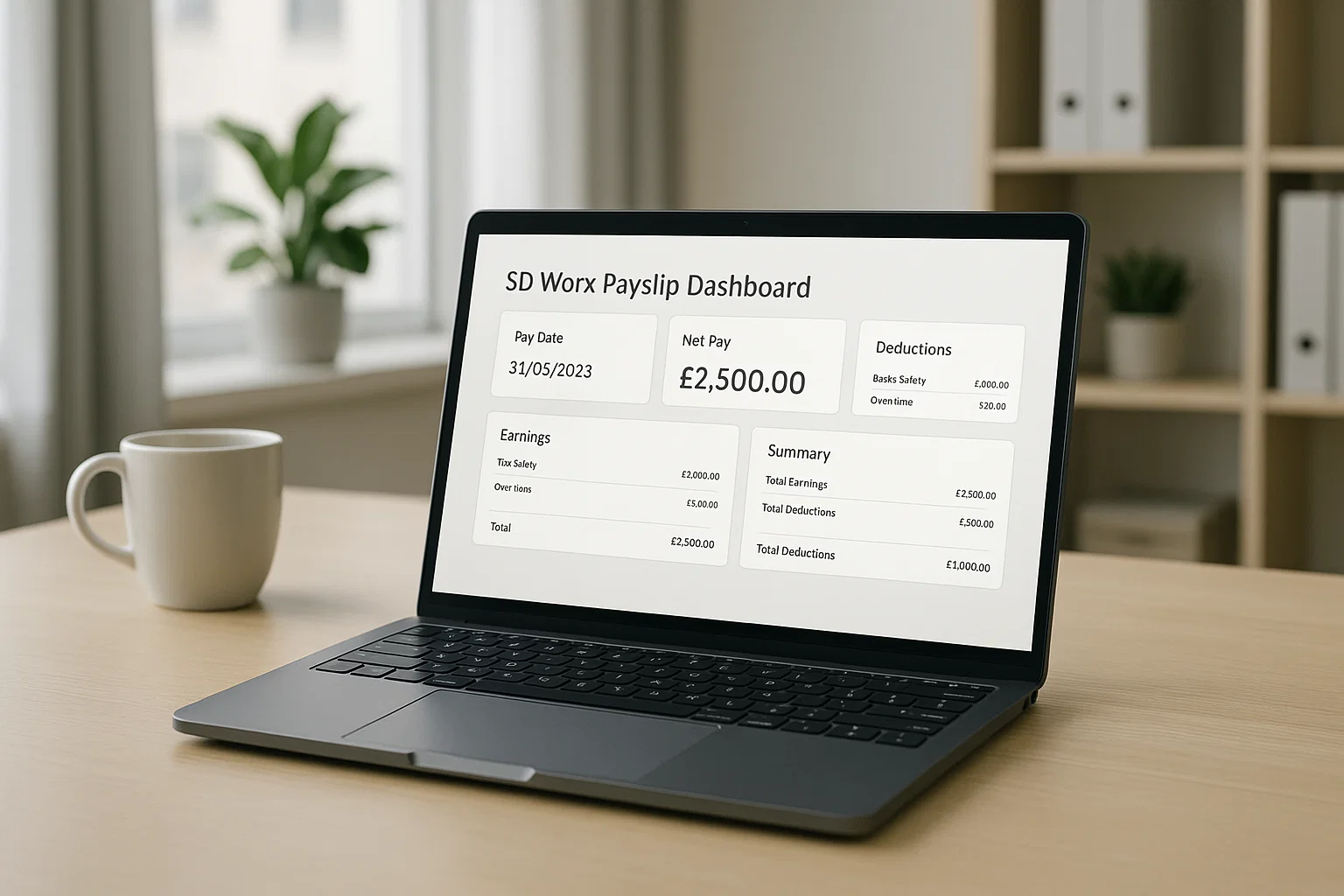
Here’s the clearest, most human explanation of how SD Worx payslips work, how to log in, how to download them, and what to do when the system decides to be moody and stops loading. I’ve broken everything down so even a first-time user can get in and out in minutes.
Why SD Worx Matters for Employees
SD Worx is the payroll system used by thousands of employers in the UK and Europe. Some workplaces only use it for payslips. Others use it for rotas, tax documents, P60s, holiday requests and HR messaging.
But from an employee’s point of view, there are three things that matter most:
- You can see exactly what your employer paid you
- You can download or print your payslip for Universal Credit, loans or personal records
- You can check your tax code, deductions and year-to-date totals
When SD Worx works, it works smoothly. You open your dashboard, tap “Payslips”, and everything is right there. When it doesn’t work… well, we’ll get to that in a moment.
What SD Worx Payslips Actually Show
The payslip layout looks slightly different for each employer, but the important bits are always the same:
- Basic pay
- Overtime or bonus pay
- Tax and National Insurance
- Pension deductions
- Student loan deductions
- Employer contributions
- Year-to-date totals
- Your tax code
If you claim Universal Credit, SD Worx matters even more because DWP receives your earnings data directly from your employer’s payroll. If your payslip is wrong or late, your UC payment can be affected. Always check your totals, especially if something feels off in your monthly benefits calculation.
How to Access Your SD Worx Payslip (Step-by-Step)
Here’s the quickest route to your payslip:
1. Go to your employer’s SD Worx link
Most companies don’t use a public link. They use a company-specific login page, often like:
Your HR or payroll team normally gives you the correct URL when you join.
2. Enter your SD Worx employee login details
You’ll need:
- Username or email
- Password
- Sometimes a company code
If it’s your first login, you may have to:
- Activate your account through an email link
- Verify your mobile number
- Set up security questions
3. Open the Payslip or Payroll section
Once you’re in:
- Look for “My Pay”, “Payslips” or “Payroll Documents”
- Choose the month you want
- Tap Download to save the PDF
4. If your payslip isn’t there yet
This usually means:
- Payroll hasn’t finalised your salary
- Your employer has a delay in submissions
- Your account wasn’t synced correctly this month
It almost never means SD Worx lost your payslip timing is usually the culprit.
Using the SD Worx Mobile App
Most employees find the mobile app easier than the website, especially if they only want to peek at their net pay on payday.
Where to Download
You can download the app from:
- Google Play Store
- Apple App Store
Search for “SD Worx Mobile” or “SD Worx Assistant” depending on what your employer uses.
How to Log In
You’ll enter the same details you use on the website:
- Username
- Password
- Possibly a company code
If the app says it “doesn’t recognise” your details:
- Update the app
- Clear stored data
- Log in using Wi-Fi instead of mobile data
- Try the website version
Sometimes employers restrict app access and only allow web logins, so check this with payroll if nothing works.
How to Download Your SD Worx Payslip
Downloading is easy once you’re in:
- Open Payslips
- Choose your month
- Select Download PDF
- Save it to your Files, Google Drive, or iCloud
For printing:
- Open the PDF
- Tap Print
- Choose a connected printer
You can also view archived payslips for previous years handy for visa applications, tenancy agreements, mortgage checks and Universal Credit reviews.
When SD Worx Isn’t Working
Some days SD Worx simply refuses to load. Here’s what you can do before panicking.
1. Check your internet
A weak connection triggers:
- Blank screens
- “Service unavailable”
- Failed login attempts
Try switching from Wi-Fi to mobile data or vice versa.
2. Try the website instead of the app
The website is usually more stable.
3. Try at a quieter time
During payroll peak hours (like payday morning), the system may slow down.
4. Clear cookies or cache
Browsers save old login data, and SD Worx doesn’t always like that.
5. Check if SD Worx is down
Sometimes the outage is platform-wide. Your HR team normally receives updates before you do.
6. Ask payroll
If your employer has scheduled maintenance, they’ll usually know.
Fixing SD Worx Password Problems
Password issues are the number one reason employees can’t access their payslips.
If you forgot your password
Tap Forgot Password on the login screen.
Follow the steps to reset it.
If you don’t receive the reset email
This happens when:
- Your employer hasn’t added your email
- Your email changed
- The email is going to spam folders
- Your account isn’t activated
Payroll needs to correct this on their end.
If your account is locked
SD Worx locks accounts after too many attempts.
Only HR or payroll can unlock it SD Worx support cannot reset logins for employees directly.
SD Worx Contact Routes Who Actually Helps You
This part confuses a lot of people.
SD Worx usually cannot help employees directly.
Your employer controls:
- Login activation
- Password resets
- Payslip uploads
- Payroll corrections
- Personal information updates
The SD Worx helpline supports employers, not individual workers.
So if something is wrong with your:
- Pay
- Tax
- Login
- Shift pay
- Benefits deductions
- Universal Credit reporting
…your HR team or payroll department is the one to contact.
SD Worx and Angard Staffing
Angard employees often rely on SD Worx for payslips used by:
- Royal Mail
- Mail Centres
- Logistics Sites
Common issues include:
- Delayed payslips
- Incorrect login details
- App not loading
- Universal Credit reporting delays
Angard payroll must update your details manually if you can’t log in.
A missing payslip is almost always an employer-side delay, not an SD Worx error.
Is SD Worx a Good Tool for Employees?
Honestly, yes when everything is set up correctly.
Here’s what employees like:
- Clean dashboard
- Fast payslip access
- Easy PDF download
- Secure storage
- Access to old documents
Things that could be better:
- Some employers hide features behind restrictions
- Password resets are clunky
- The app occasionally crashes
- Outages happen at peak payroll times
But overall, SD Worx is one of the more reliable payroll systems used in the UK.
FAQs Quick Answers for Busy People
What is my SD Worx?
It’s your personal payroll account where you view payslips, P60s, and employment details.
How do I access my SD Worx payslip?
Log in using your employer’s SD Worx link, open Payslips, and download the PDF.
Is SD Worx easy to use?
Once your account is set up, yes. The layout is simple and predictable.
Why is my payslip missing?
Because payroll hasn’t released it yet or your account wasn’t synced this month.
What if SD Worx is down?
Wait a bit, try the website, or ask HR. Outages don’t last long.
Can I claim back PAYE through SD Worx?
No PAYE refunds are handled by HMRC, not SD Worx.
A Final Word Before You Log In
Payroll shouldn’t feel stressful. Your payslip is your money you should be able to reach it without jumping through hoops. Once you learn the rhythm of SD Worx, everything from logging in to grabbing last year’s PDFs becomes second nature.
And if anything feels wrong?
Don’t struggle alone. Payroll teams exist for a reason, and they’re the only ones who can fix account problems from the employer side.
You’ve got everything you need now.
Go check that payslip with confidence.

Rachel combines her technical expertise with a flair for clear, accessible writing. A graduate of the University of Edinburgh, she specializes in creating detailed tech-focused content, Govt Jobs, Payslips that educates our readers about the latest in web development and SEO tools at Spinbot blog.